

Warehouses
Manage every stocking location with capacity, low-stock pressure, inbound orders, pending returns, and location-level stock detail.
At a glance
The numbers on your screen, explained
What each Warehouses number means and where it comes from — so you know where to act.
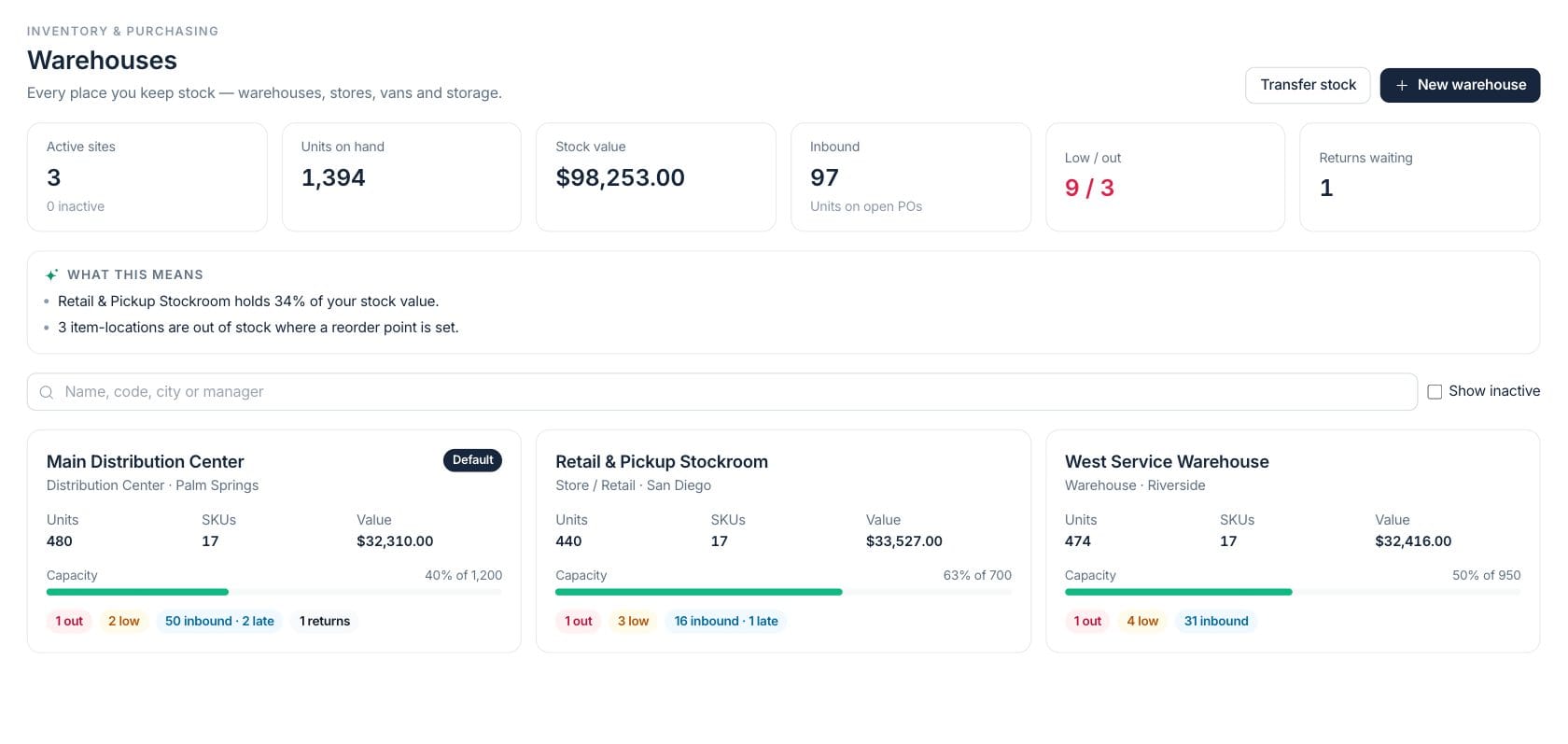
Warehouses, stockrooms, stores, vans, or storage sites that can currently hold and move stock.
Total units currently recorded across active warehouse locations.
Units on open purchase orders scheduled to arrive at active locations.
Low-stock and out-of-stock item-location counts across warehouses.
Sample numbers from a demo workspace.
Locations
See capacity, units, value, low stock, inbound orders, and returns by site
Warehouse cards show the operating state of each stock location, including default and inactive status, units, SKUs, value, capacity, low or out counts, inbound quantities, late inbound orders, pending returns, and manager context.
- Use warehouses, stores, vans, and storage sites
- Track capacity and default location status
- Spot low, out, inbound, late, and return signals
Site detail
Open one location to review stock, inbound work, movements, returns, and details
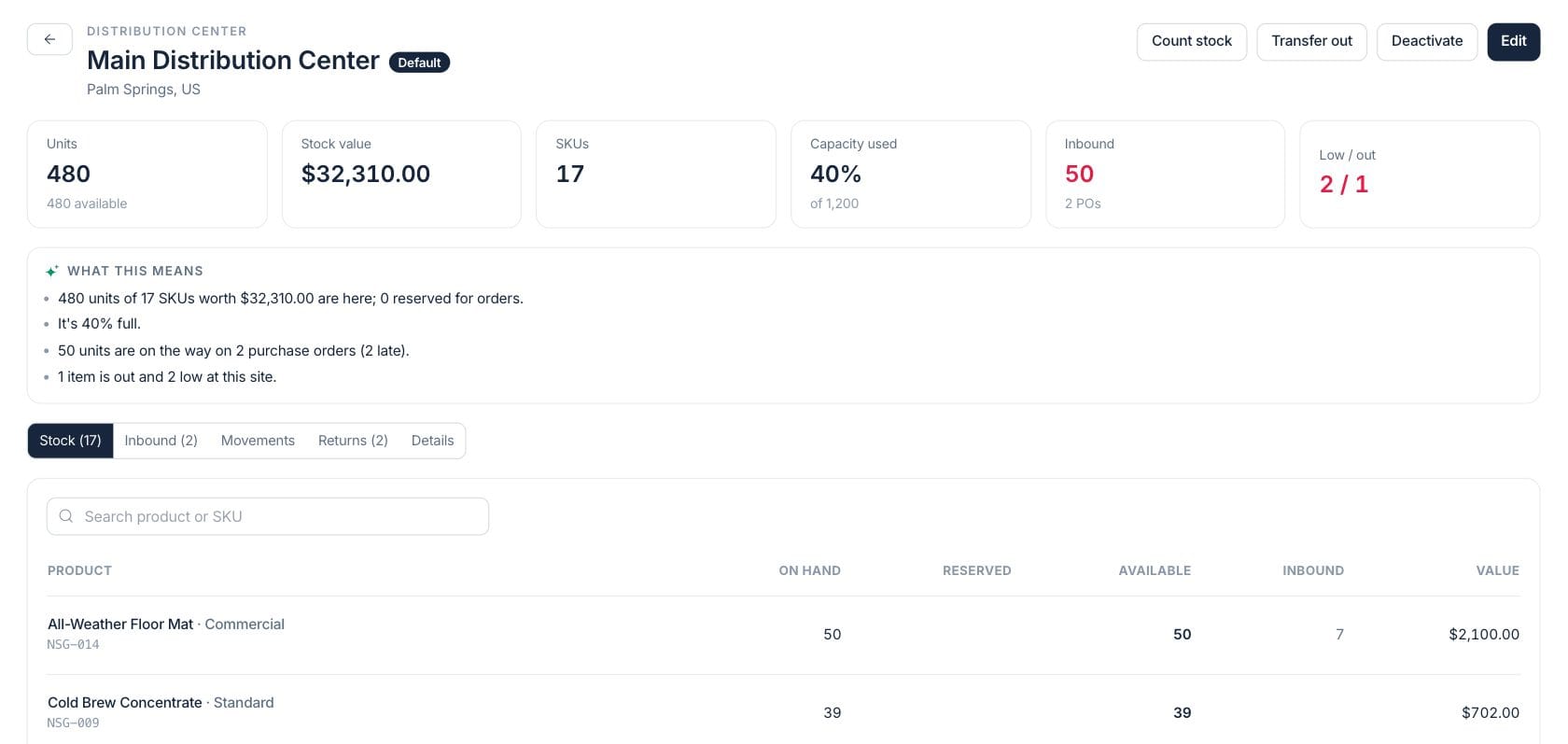
A warehouse detail page summarizes units, available stock, reserved units, stock value, inbound orders, pending returns, utilization, and the actions needed at that location.
- Count stock for one location
- Start transfers from the selected site
- Review inbound purchase orders and returns waiting
Governance
Keep stock locations controlled as the business grows
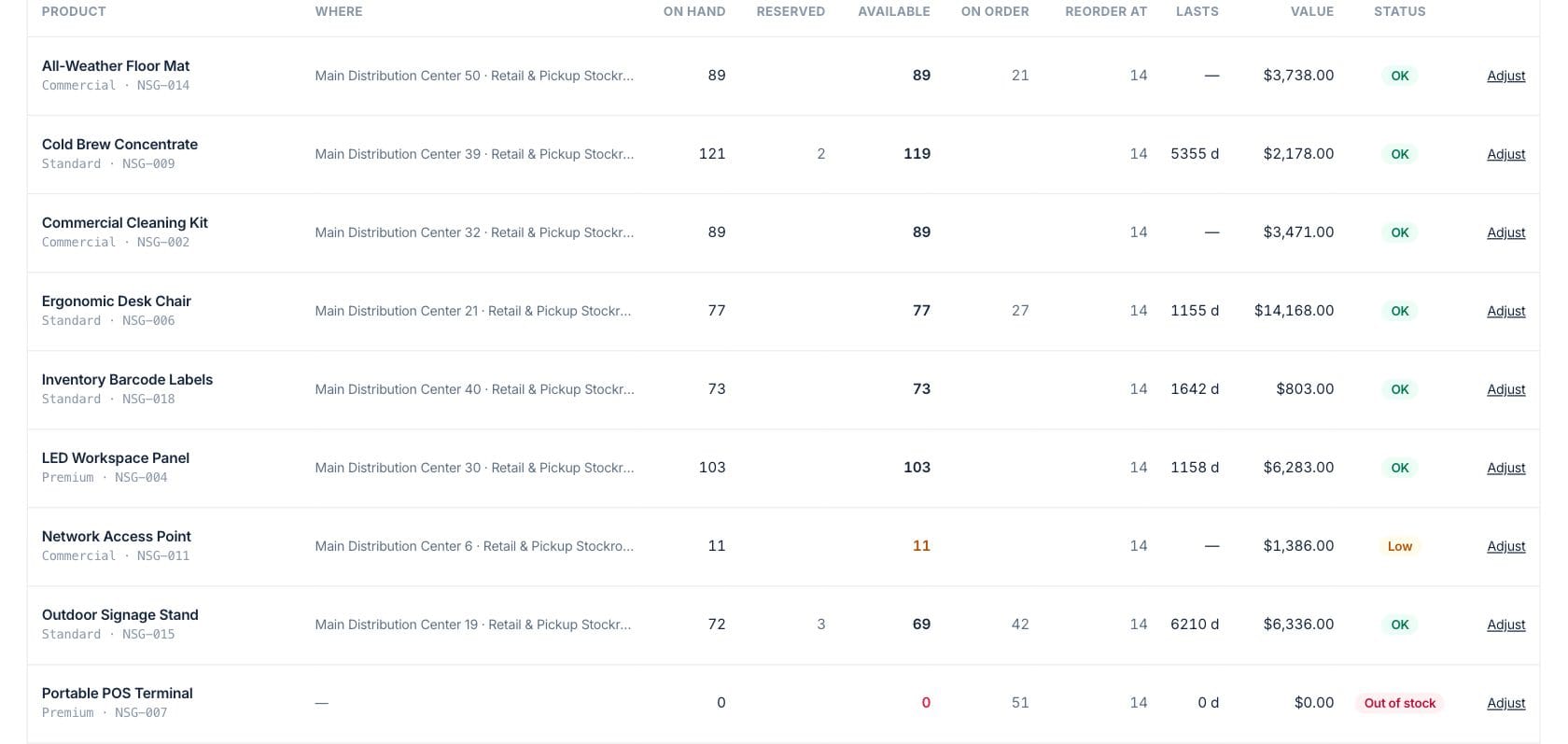
Warehouse setup protects the default site, supports deactivation when a location should stop being used, and prevents deletion when stock or records still reference the site.
- Make another active warehouse the default before deactivating
- Deactivate instead of deleting referenced locations
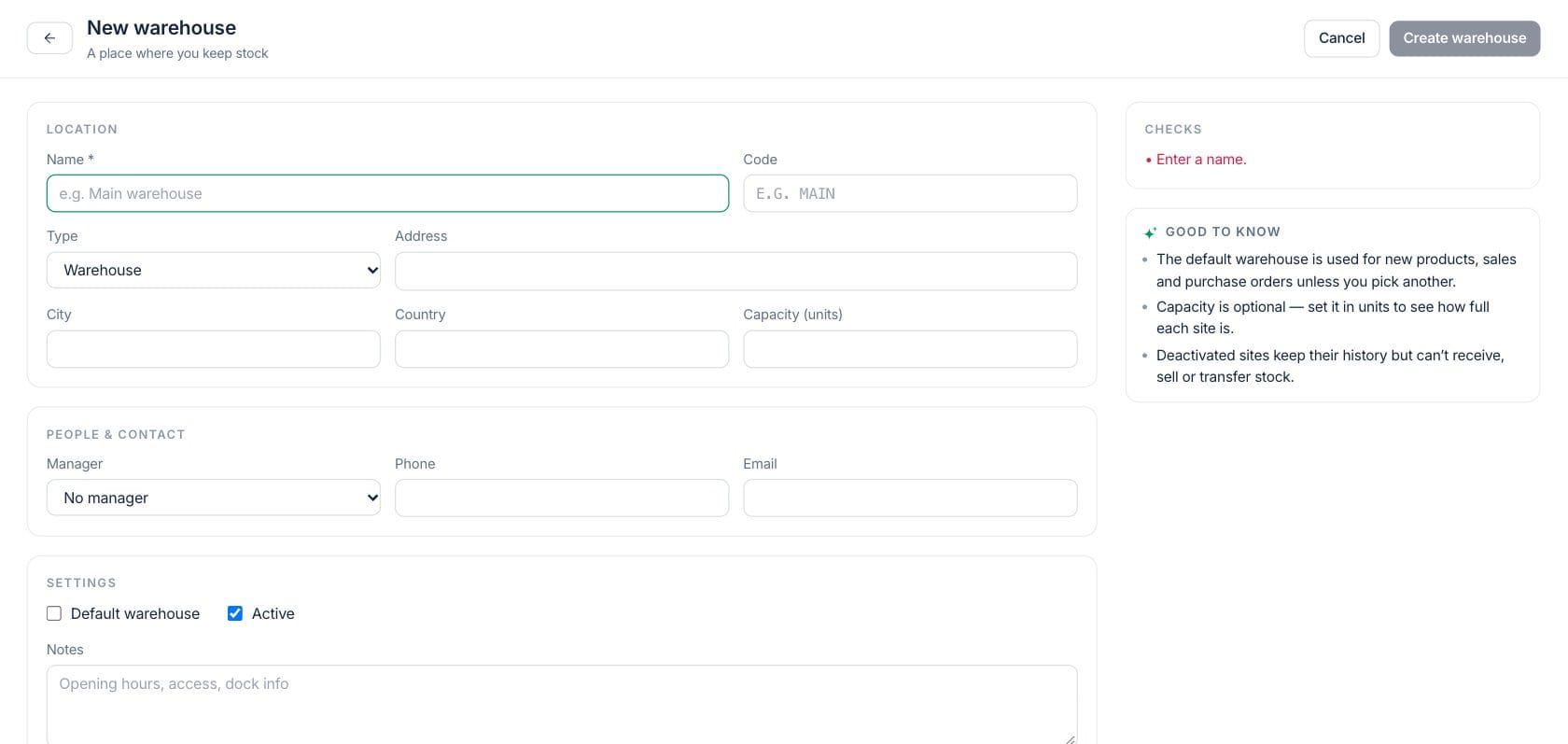
- Assign code, type, city, manager, and capacity
Everything included
Everything in Warehouses
Use it for branch stock, storage facilities, service vehicles, and fulfillment locations.
Multi-location stock
Model warehouses, retail stockrooms, service vans, branches, and storage areas as stock locations.
Capacity tracking
Show utilization against configured capacity so crowded locations are easy to spot.
Inbound visibility
See units arriving from open purchase orders and which inbound work is late.
Low and out by site
Surface low-stock and out-of-stock item-location counts for each warehouse.
Transfer actions
Start stock transfers from a location when another site needs inventory.
Location responsibility
Store manager and location details so operational ownership is visible.
Safer deactivation
Deactivate referenced locations instead of deleting records that stock history still needs.
How it works
Warehouses, step by step
- 01
Create stock locations
Add each warehouse, store, van, or storage site with type, code, city, capacity, and manager details.
- 02
Review site health
Use cards and KPIs to compare units, SKUs, value, capacity, low stock, inbound orders, and returns.
- 03
Open a site for detail
Drill into stock lines, inbound POs, movement history, returns, and location settings.
- 04
Rebalance or count
Start a transfer, count stock, or deactivate a location when operations change.
Connected
Works with the rest of Fratelli
The same records flow between these workspaces automatically.
FAQ
Warehouses questions
Can’t find what you need? Our team is happy to help.
Yes. The workspace is for any place that keeps stock, including warehouses, stores, vans, and storage locations.
No. Locations referenced by stock, orders, transfers, or returns should be deactivated instead so history remains understandable.
Yes. One active location can be the default. The current default must be replaced before it can be deactivated.
Try Warehouses with the rest of Fratelli
Start free in minutes and bring the rest of your team when you are ready.