

Stock Transfers
Move inventory between warehouses, stores, and vans with the route, items, units, date, and user recorded at both ends.
At a glance
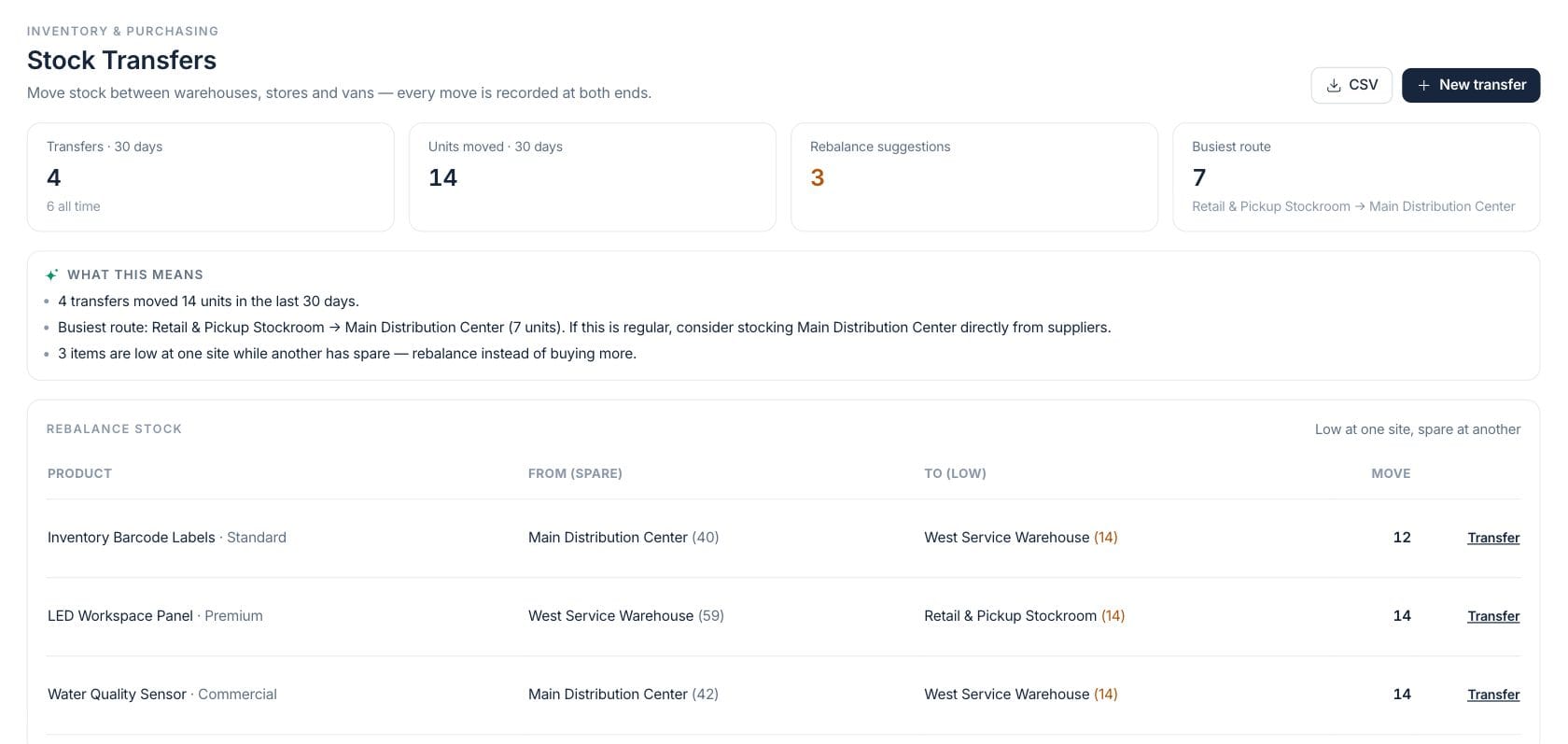
The numbers on your screen, explained
What each Stock Transfers number means and where it comes from — so you know where to act.
Number of stock transfer groups recorded in the last 30 days.
Total units moved through stock transfers during the last 30 days.
Items low at one location while another location has spare stock available.
The route with the most units transferred in the selected history.
Sample numbers from a demo workspace.
Rebalance
Move stock from spare locations to low locations before buying more
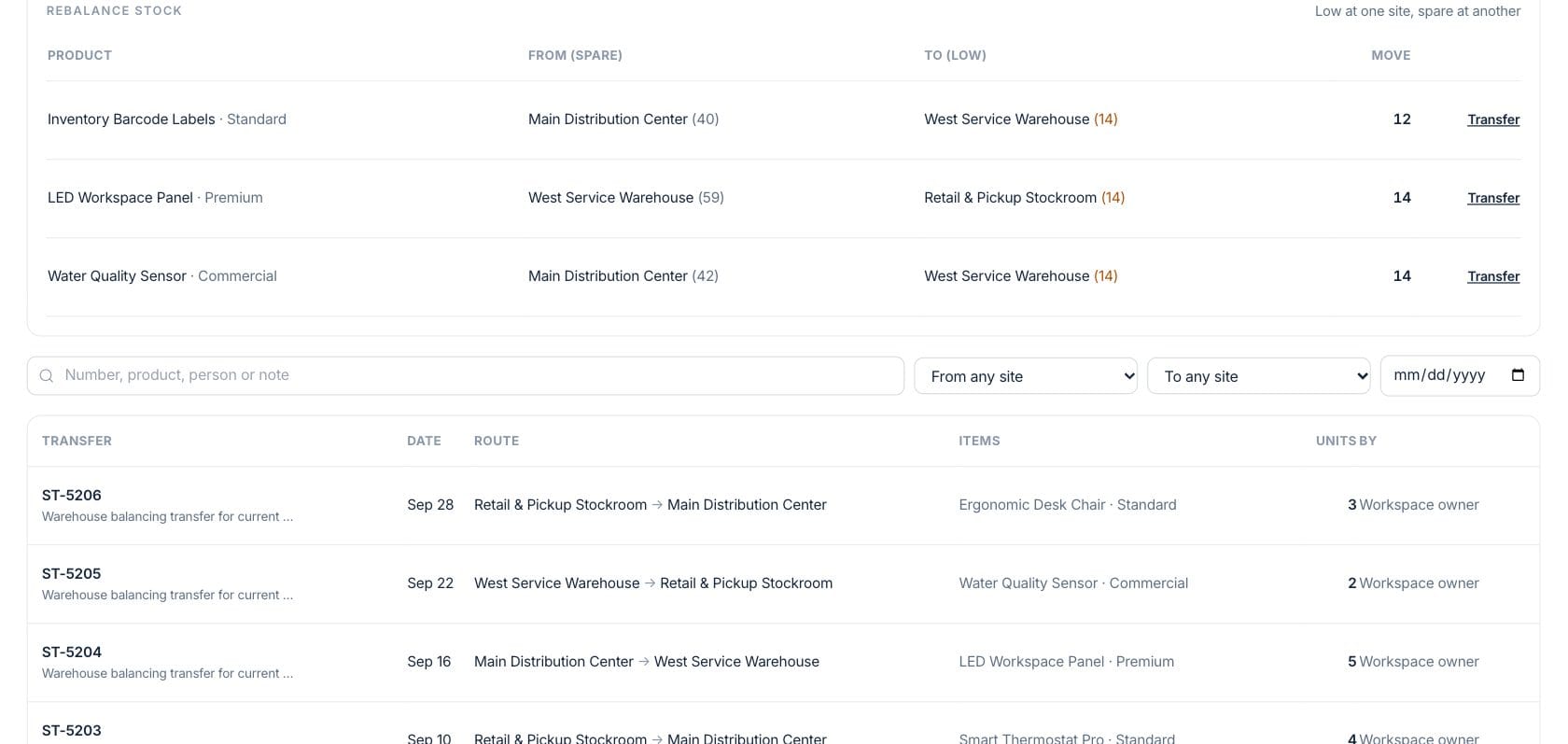
The transfer workspace surfaces rebalance suggestions when one site is low and another has spare units, then lets teams start a transfer for that route and item group.
- See product, source site, destination site, and move quantity
- Start a transfer from a suggested row
- Use transfers instead of unnecessary supplier orders
History
Review every transfer by route, item, unit count, date, and person
Transfer history is searchable and filterable by source, destination, and date. Each row records the transfer number, route, items, units moved, notes, and who made the move.
- Search by number, product, person, or note
- Filter from and to warehouses
- Export transfer history to CSV
Create
Build a transfer with only stock that is available at the source
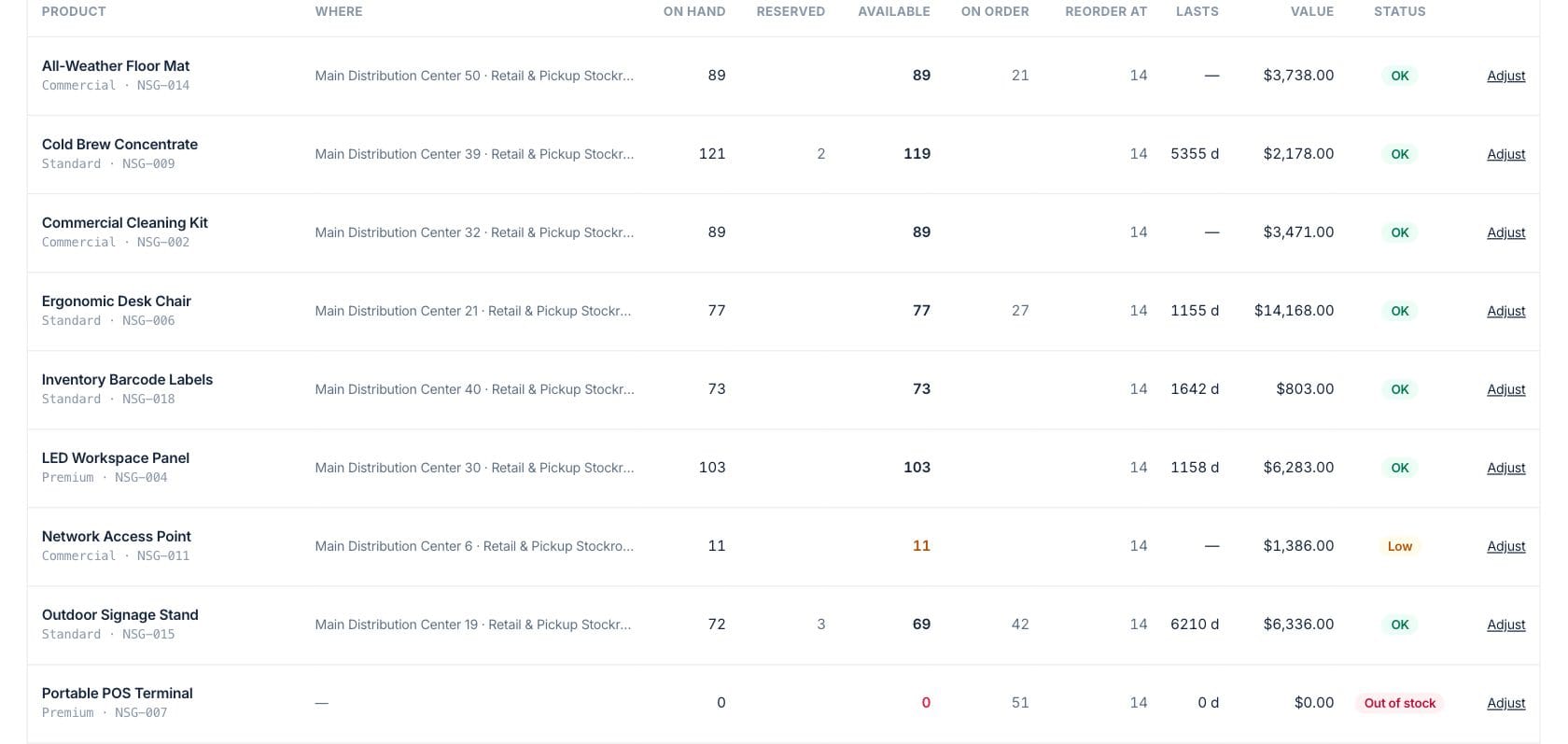
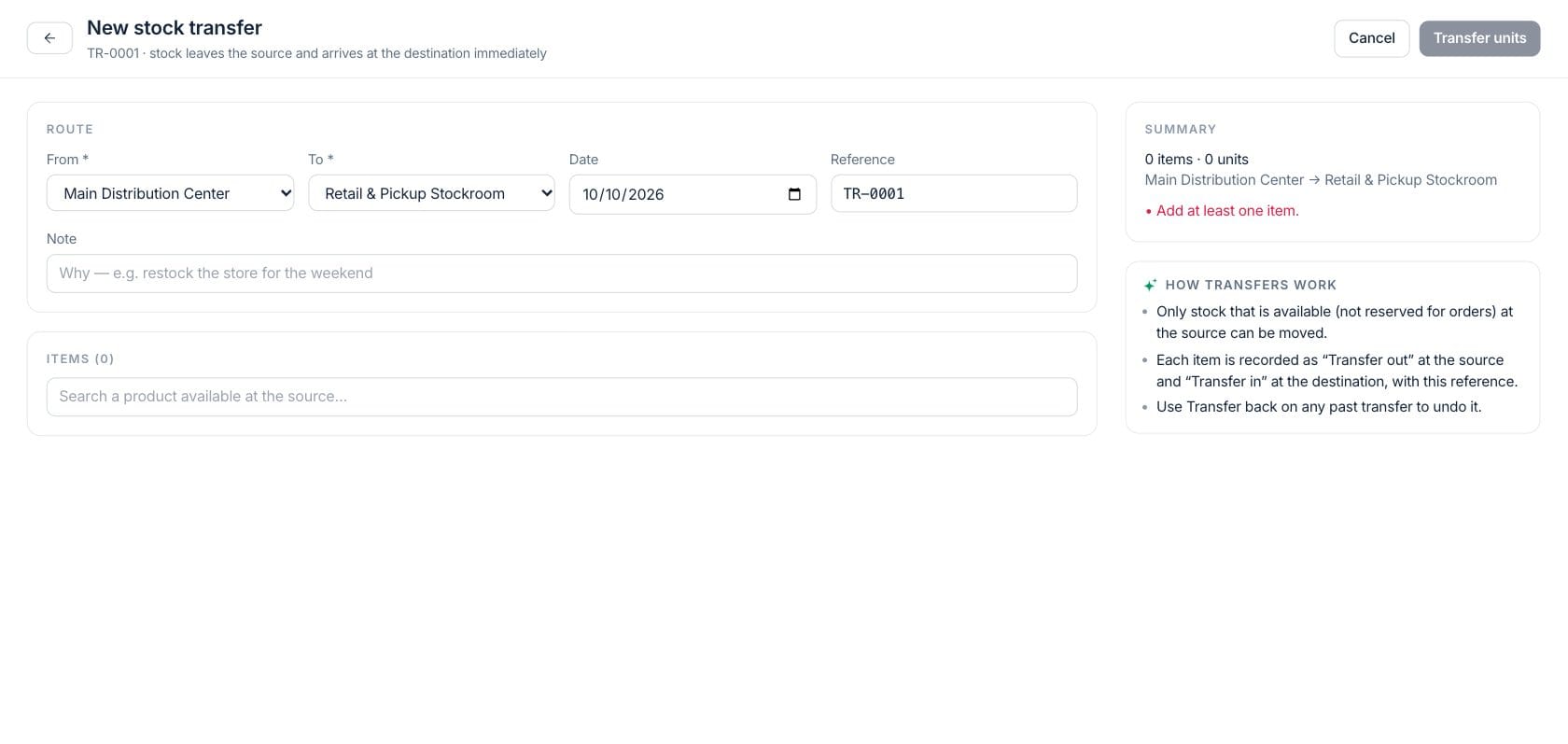
The transfer editor lets teams pick source and destination locations, then choose products and quantities from stock available at the source so locations stay accountable.
- Choose from and to warehouses
- Select products with available source stock
- Transfer back from an existing transfer when needed
Everything included
Everything in Stock Transfers
Use it to rebalance availability, supply a branch, or support a fulfillment handoff.
Location rebalancing
Move stock from sites with spare quantity to sites that are low.
Source and destination
Record the warehouse stock leaves and the warehouse that receives it.
Itemized transfers
Move one or many product variants with quantities on the same transfer.
Transfer search
Find transfers by number, product, person, note, source, destination, or date.
CSV export
Export the transfer history for operations review or physical stock checks.
Recorded by person
Preserve who made the transfer so stock movement questions have an owner.
Transfer back action
Open a past transfer and start a reverse move when stock needs to be returned.
How it works
Stock Transfers, step by step
- 01
Review rebalance suggestions
Check which items are low at one site while another site has enough spare stock.
- 02
Choose the route
Select source and destination warehouses or start from a suggested row.
- 03
Confirm items and quantities
Pick products available at the source and enter the quantities to move.
- 04
Record and review
Save the transfer so both ends are recorded and the movement remains searchable.
Connected
Works with the rest of Fratelli
The same records flow between these workspaces automatically.
FAQ
Stock Transfers questions
Can’t find what you need? Our team is happy to help.
In this workspace, stock leaves the source and arrives at the destination in one step, with both sides recorded in transfer and movement history.
Yes. Rebalance suggestions appear when one location is low and another has spare stock.
Yes. The stock transfer list includes CSV export with transfer number, route, items, units, date, and person context.
Try Stock Transfers with the rest of Fratelli
Start free in minutes and bring the rest of your team when you are ready.