

Inventory Tracking
Track on-hand, reserved, incoming, and available quantities by product and warehouse, with movement history behind every change.
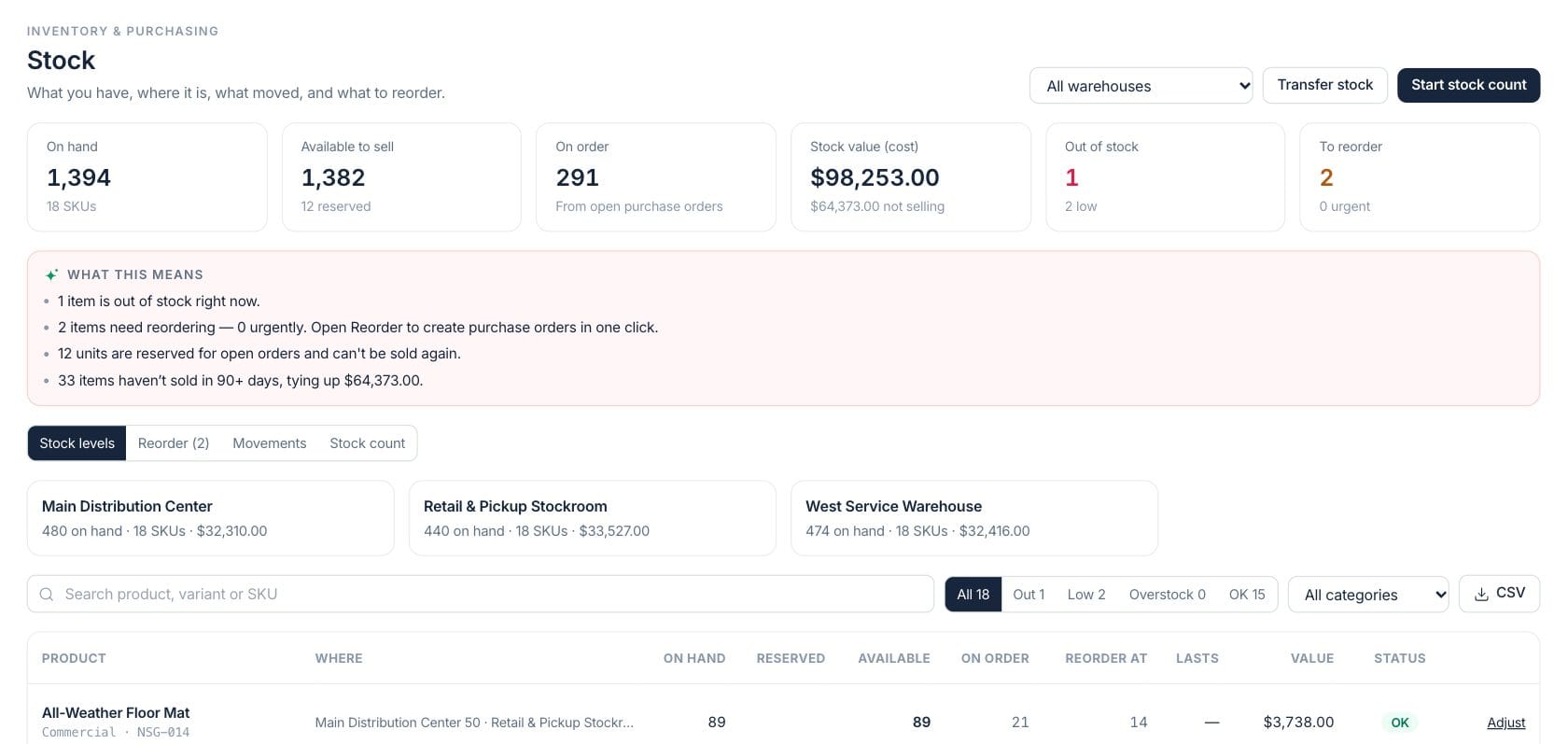
At a glance
The numbers on your screen, explained
What each Inventory Tracking number means and where it comes from — so you know where to act.
Total physical units currently recorded across the selected warehouses.
On-hand stock minus units reserved for open orders, shown for the selected stock view.
Units expected from open purchase orders that have not been fully received.
Cost value of current stock, with slow-moving value called out when cost permissions allow it.
Sample numbers from a demo workspace.
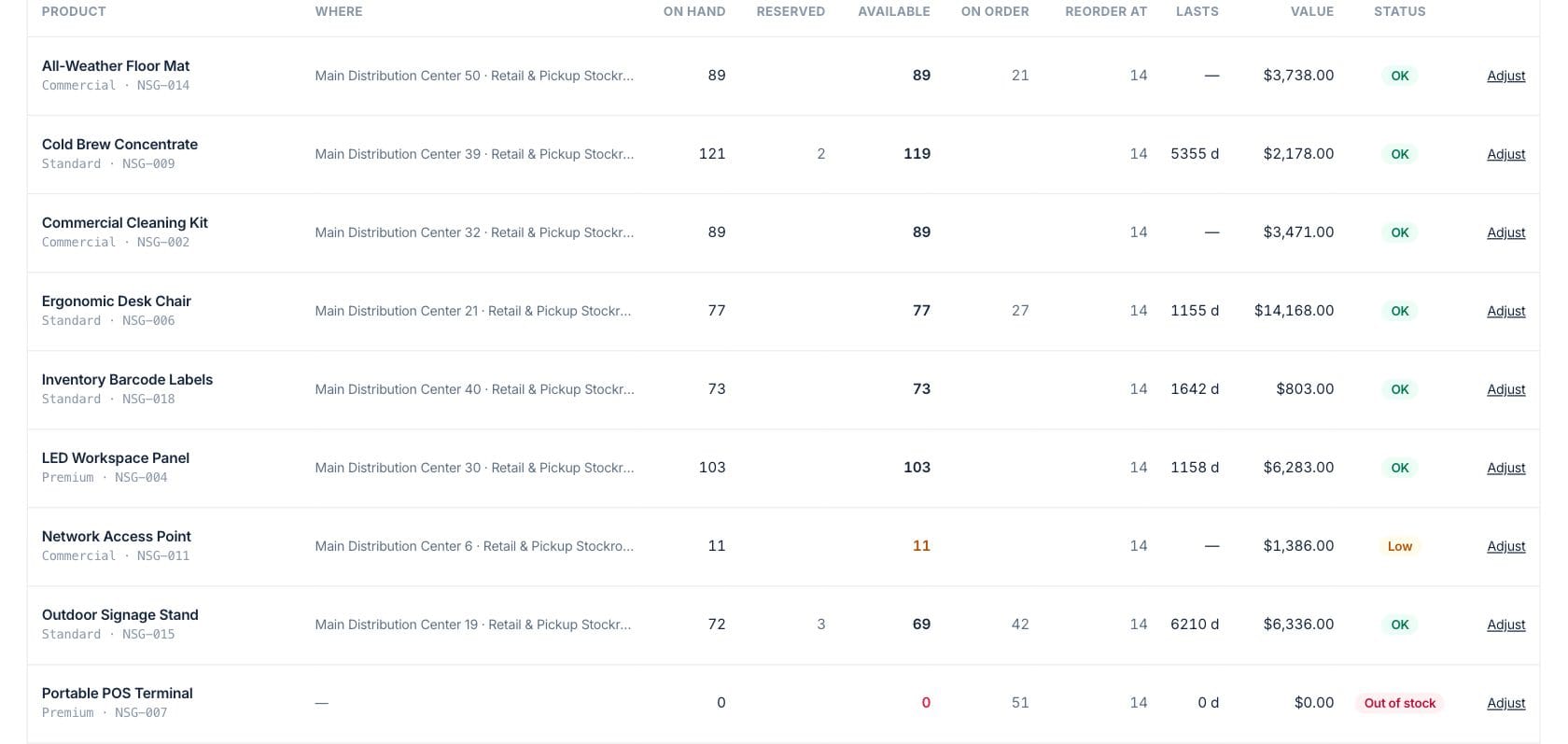
Levels
Review exact availability by SKU and stocking location
The stock levels tab shows product, warehouse, on hand, reserved, available, on order, reorder point, days of cover, value, and status with filters for low, out, overstock, and OK items.
- Compare on hand, reserved, available, and on order
- Filter by state, category, warehouse, or search
- Export the visible stock levels to CSV
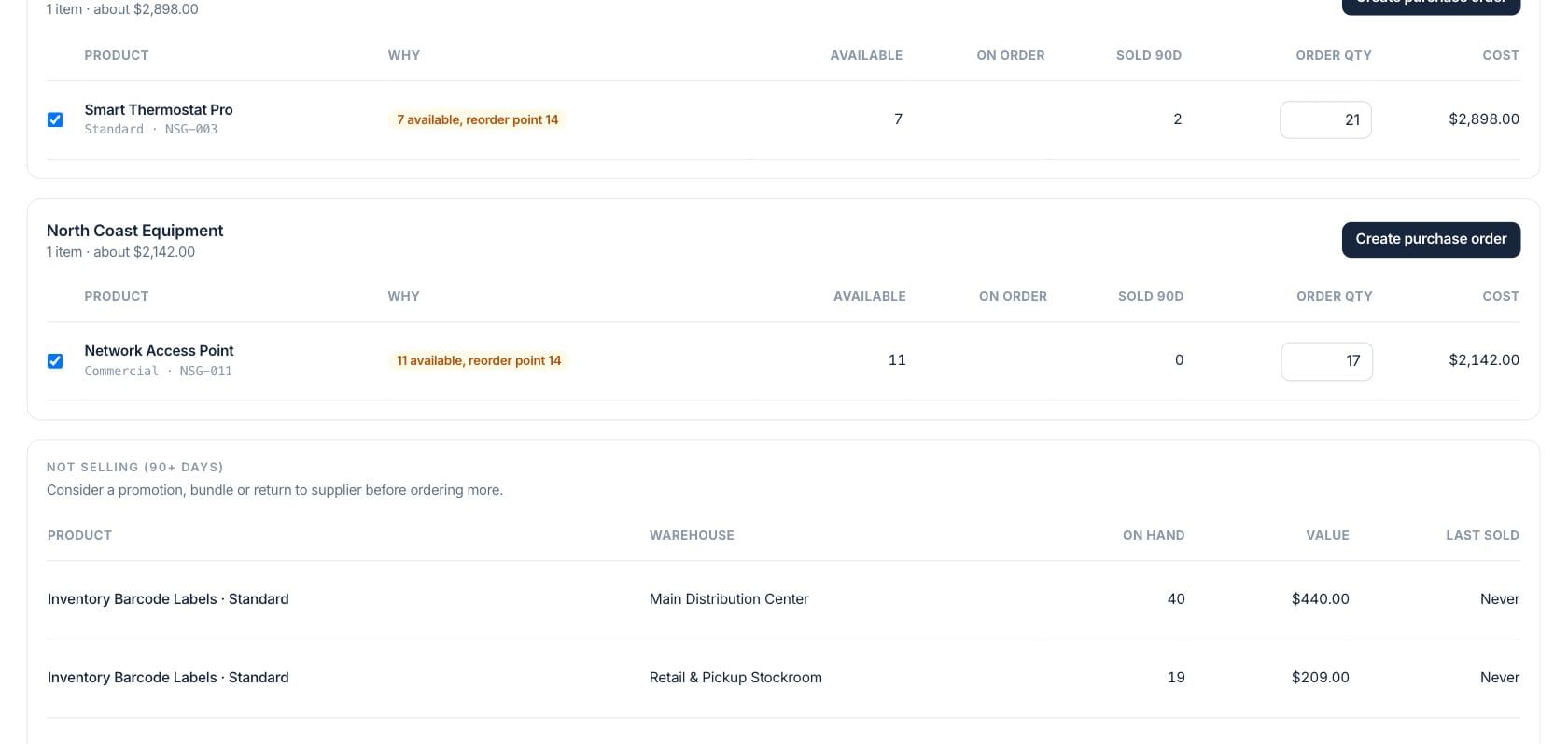
Movements
Trace how stock changed across receipts, sales, adjustments, and transfers
Movement history lets teams filter by type, direction, date range, product, reference, or note so availability questions can be answered from the record instead of memory.
- Filter inbound and outbound movements
- Search by product, reference, or note
- Open the product behind a movement row
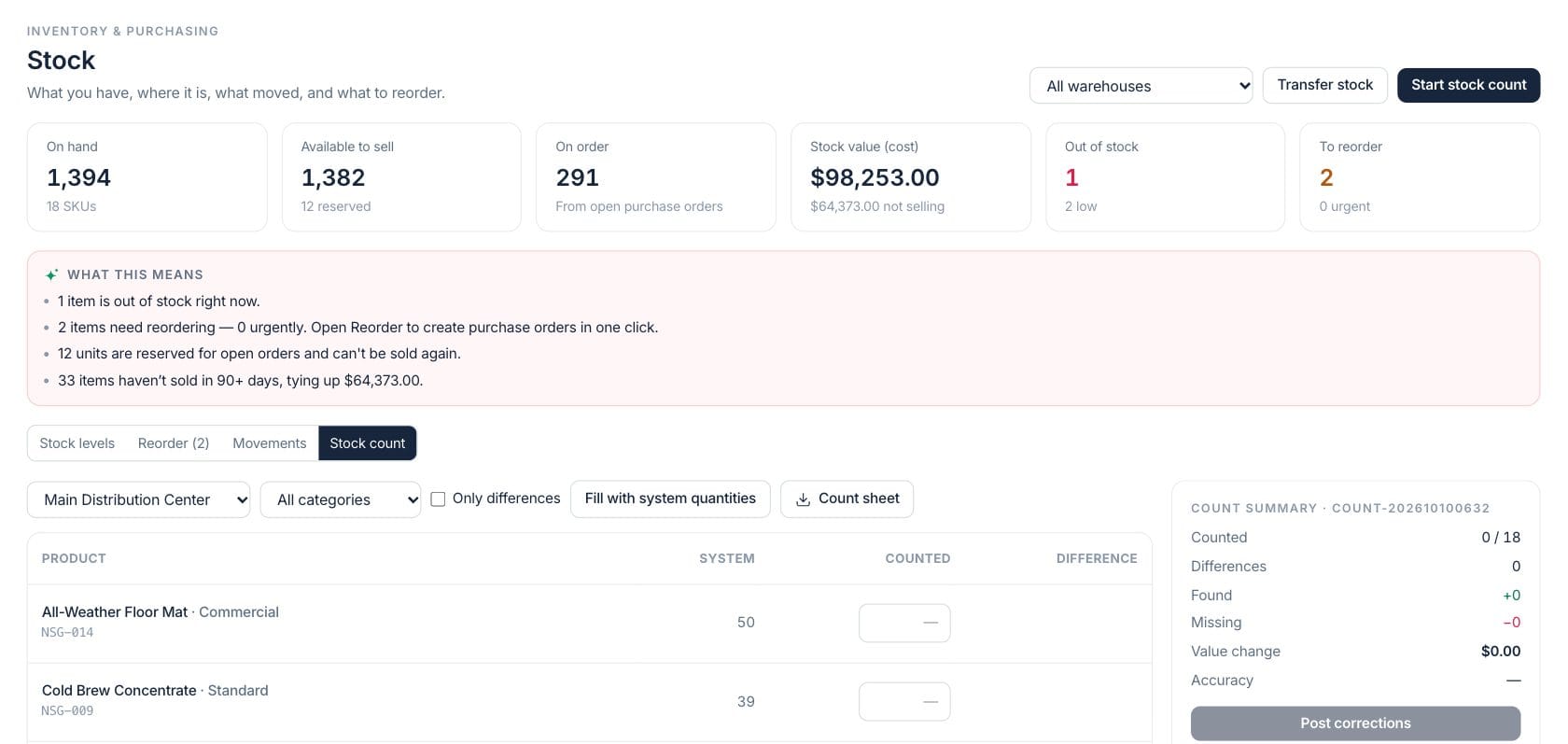
Counts
Use stock counts and adjustments to correct physical inventory
Stock count workflows record batch adjustments by warehouse. Product pages direct existing on-hand changes through adjustments so quantity corrections keep an audit trail.
- Start a stock count from the Stock workspace
- Post count adjustments by warehouse
- Keep manual corrections in movement history
Everything included
Everything in Inventory Tracking
Use it for availability questions, stock investigation, and movement review.
Stock ledger view
Review current stock positions and the movement rows that explain how quantities changed.
Location-level quantities
Break stock down by warehouse, store, van, or any active stock location.
Reserved inventory
Separate units reserved for orders from units available to sell.
Incoming inventory
Show units on open purchase orders before they are received.
CSV stock export
Export stock levels with status, reorder point, days of cover, and value for outside review.
Stock counts
Post count adjustments in batches so physical corrections are documented.
Fast investigation
Search product, variant, SKU, reference, or note to answer stock questions quickly.
How it works
Inventory Tracking, step by step
- 01
Choose a warehouse or all warehouses
Filter the stock workspace to one location when a branch, stockroom, or van needs attention.
- 02
Check availability and status
Review on hand, reserved, available, on order, reorder point, days of cover, and status.
- 03
Open movement history
Trace the receipts, sales, transfers, returns, and adjustments that changed the balance.
- 04
Correct with counts or adjustments
Use stock counts or adjustment workflows when the physical shelf and system quantity do not match.
Connected
Works with the rest of Fratelli
The same records flow between these workspaces automatically.
FAQ
Inventory Tracking questions
Can’t find what you need? Our team is happy to help.
On hand is the physical stock recorded. Available to sell subtracts reserved units so the same inventory is not promised twice.
Yes. Stock rows can be reviewed across all warehouses or filtered to a specific warehouse, store, van, or storage site.
Yes. Movement history shows the stock changes behind current quantities, including receipts, transfers, sales, returns, counts, and adjustments when available.
Try Inventory Tracking with the rest of Fratelli
Start free in minutes and bring the rest of your team when you are ready.