

Time Off
Review leave requests with approval status, coverage impact, weekly calendar context, and bulk actions for manager decisions.
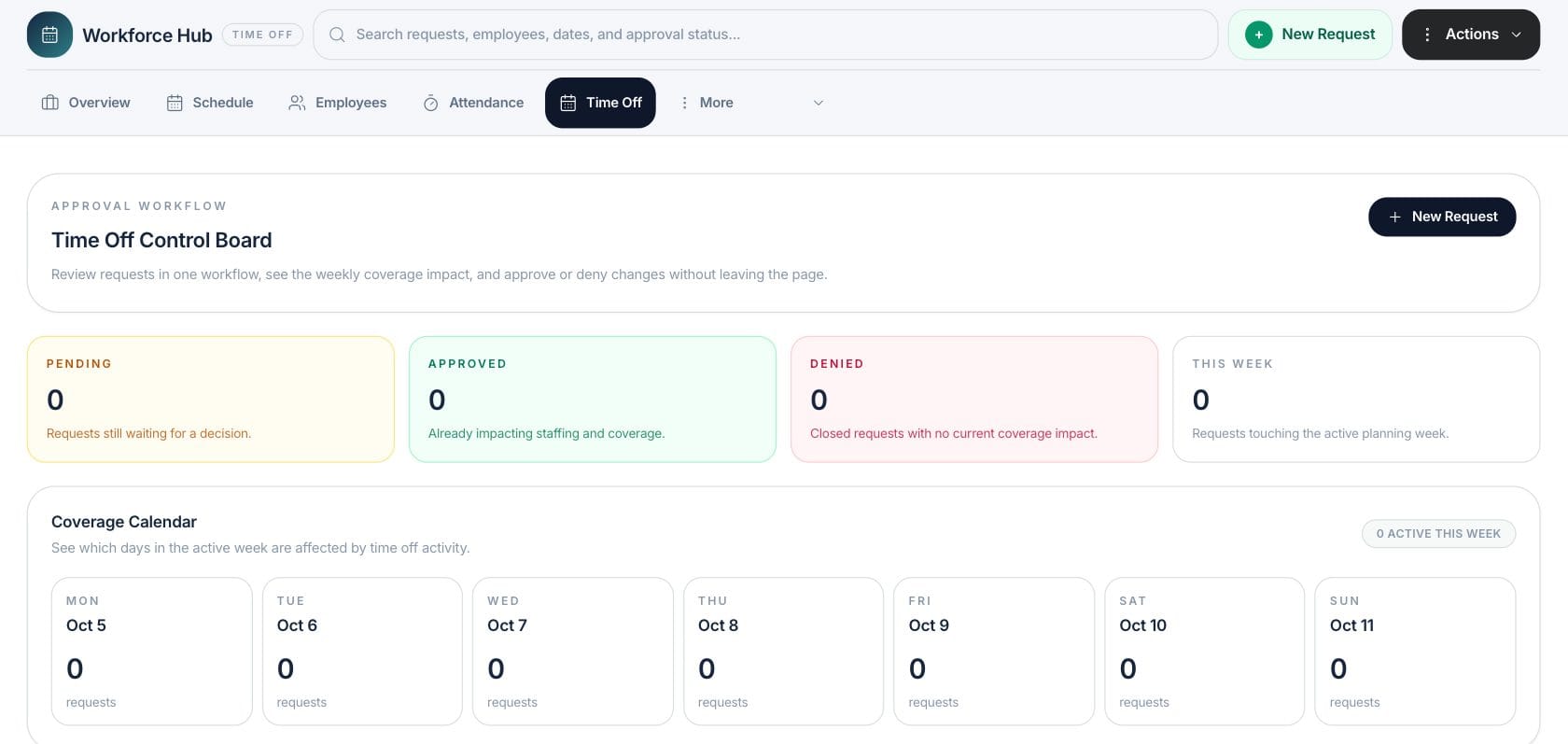
At a glance
The numbers on your screen, explained
What each Time Off number means and where it comes from — so you know where to act.
Counts filtered time-off requests with pending status.
Counts approved requests that may already affect schedule coverage.
Counts denied requests in the selected time-off view.
Counts requests whose date range overlaps the active planning week.
Sample numbers from a demo workspace.
Approve
Work requests from a simple control board
Time Off groups requests into pending, approved, and denied columns with coverage language managers can act on.
- Pending, approved, and denied lanes
- New Request action
- Bulk approve or deny
- Request selection queue
Plan
See which days are affected this week
The coverage calendar shows each day in the active week and how many leave requests touch that date.
- Active-week calendar
- Daily request counts
- Coverage impact summary
- Approved requests reflected in staffing
Submit
Create requests with employee, category, dates, and notes
Managers can add a request directly from the Time Off workspace and then review it through the same approval flow.
- Employee selection
- Vacation, personal, and sick categories
- Start and end dates
- Manager notes and status review
Everything included
Everything in Time Off
Use it for vacation, personal leave, sick time, and planned absences.
Leave request board
Review pending, approved, and denied requests in one workspace.
Bulk decisions
Approve or deny selected pending requests from the bulk action queue.
Employee context
Attach each request to the employee whose schedule may be affected.
Date ranges
Track start and end dates and show which requests touch the active week.
Coverage impact
Call out approved requests that already affect staffing and coverage.
New requests
Create a time-off request from the same workspace managers use for review.
Decision history
Keep denied and approved states visible so closed decisions are not lost.
How it works
Time Off, step by step
- 01
Submit or receive a request
Add the employee, time-off category, dates, and notes.
- 02
Review coverage impact
Check whether the request touches the active planning week.
- 03
Approve or deny
Decide one request at a time or use bulk actions for selected pending requests.
- 04
Reflect the decision in scheduling
Approved time off becomes part of the staffing and coverage context.
Connected
Works with the rest of Fratelli
The same records flow between these workspaces automatically.
FAQ
Time Off questions
Can’t find what you need? Our team is happy to help.
Yes. The Time Off page includes a bulk action queue for selected pending requests.
Yes. Approved time off is counted in Workforce overview and used by schedule validation.
Try Time Off with the rest of Fratelli
Start free in minutes and bring the rest of your team when you are ready.