

Employees
Keep the schedule roster organized with employee profiles, contact gaps, payroll links, availability status, hours, and workforce-specific settings.
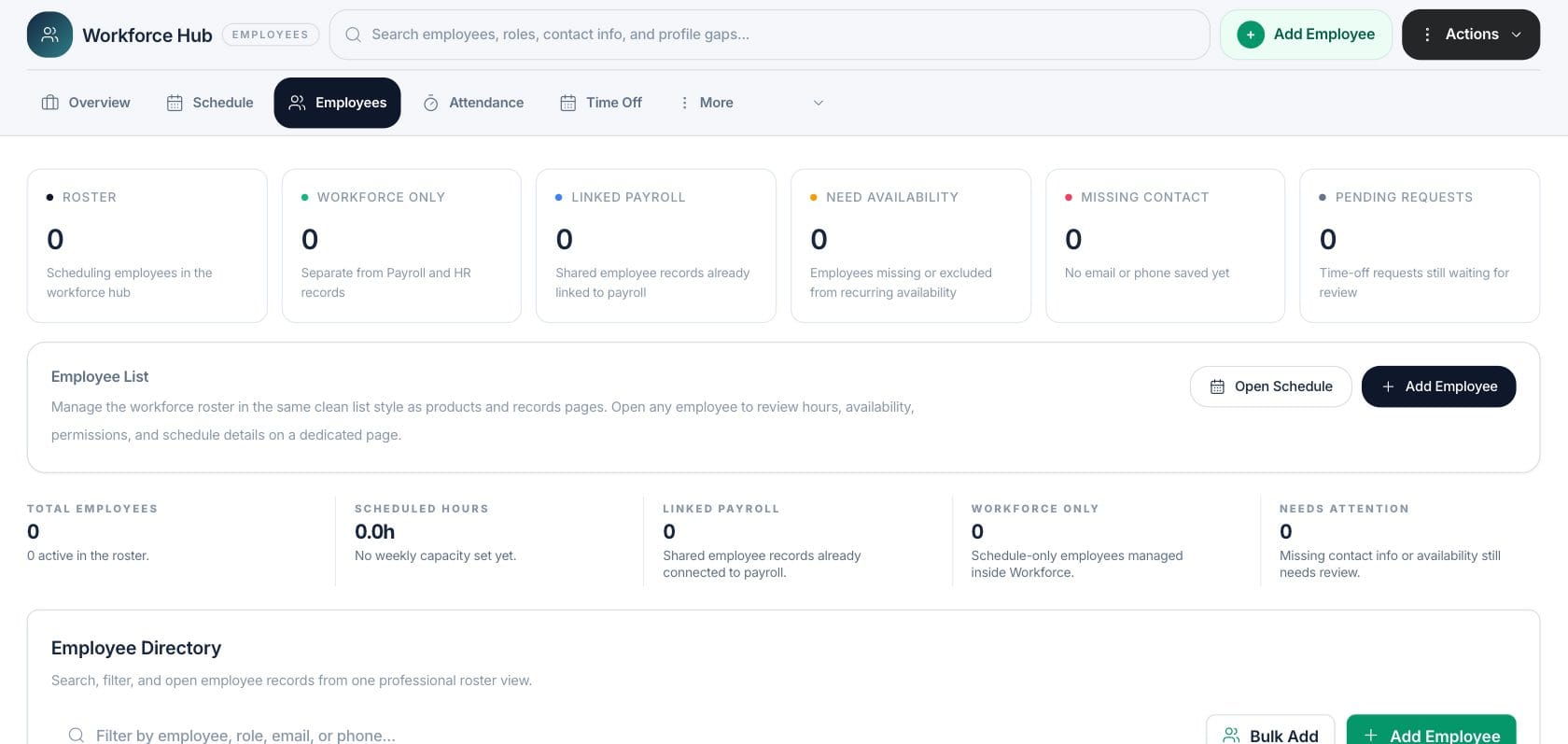
At a glance
The numbers on your screen, explained
What each Employees number means and where it comes from — so you know where to act.
Counts employee records available for Workforce scheduling.
Counts schedule-only employees that are not linked to shared payroll records.
Counts workforce employees linked to shared payroll employee records.
Counts employees missing or excluded from recurring availability.
Sample numbers from a demo workspace.
Roster
Search and manage the people used for scheduling
The employee list lets managers search by name, role, email, phone, and profile gaps while tracking who is active, linked, or needs attention.
- Employee directory search
- Active and needs-attention filters
- Bulk add and single add actions
- Open profile details
Profile
Keep workforce settings close to each person
Employee profiles include schedule guardrails such as weekly limits, daily caps, overtime behavior, locations, roles, availability, and recent attendance.
- Weekly and daily schedule limits
- Preferred locations and roles
- Availability and time-off context
- Attendance history links
Separation
Update Workforce without changing access or payroll
The editor explains that workforce edits save to the Workforce overlay only. Team Hub controls access, while payroll-related details remain separate.
- Schedule-only records supported
- Linked payroll status visible
- Team Hub access kept separate
- Profile gaps highlighted
Everything included
Everything in Employees
Use it for onboarding, role changes, manager review, and employee record maintenance.
Employee directory
Search and filter the people who can be scheduled in Workforce.
Payroll link status
See which employee records are linked to payroll and which are workforce-only.
Contact completeness
Highlight records without an email or phone number.
Work-hour guardrails
Store weekly limits, daily caps, overtime thresholds, and max shift hours.
Location preferences
Keep default and preferred locations attached to workforce profiles.
Availability links
Open a person’s availability and schedule context from the profile.
Access separation
Use Team Hub for workspace permissions rather than employee job labels.
How it works
Employees, step by step
- 01
Create or bulk add people
Add one employee or prepare multiple schedule records at once.
- 02
Fill scheduling details
Set role, contact details, locations, hour limits, and availability.
- 03
Review profile gaps
Use needs-attention filters for missing contact info or availability.
- 04
Open related work
Jump from an employee to schedule, availability, attendance, or Team Hub access context.
Connected
Works with the rest of Fratelli
The same records flow between these workspaces automatically.
FAQ
Employees questions
Can’t find what you need? Our team is happy to help.
No. Workforce role labels are for scheduling context. Workspace access, feature permissions, and sensitive data visibility are managed in Team Hub.
Yes. Workforce supports employees used for schedules without requiring them to be linked to payroll records.
Try Employees with the rest of Fratelli
Start free in minutes and bring the rest of your team when you are ready.