

Run History
Inspect automation execution history with status, timing, step detail, search, export, and retry controls for failed runs.
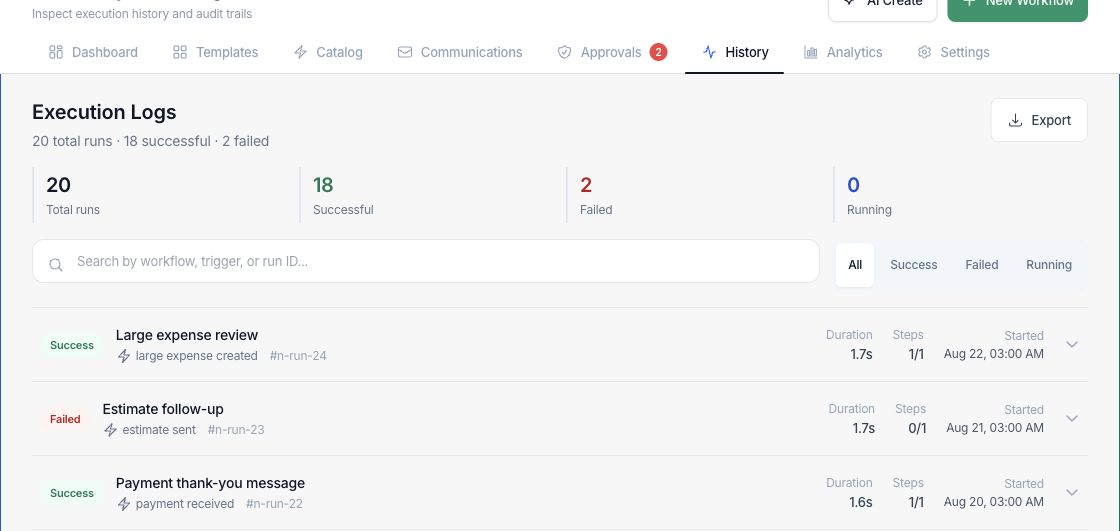
At a glance
The numbers on your screen, explained
What each Run History number means and where it comes from — so you know where to act.
All automation runs currently visible in the execution log list.
Runs that completed successfully without a failed terminal status.
Runs with a failed status that may need investigation or retry.
Runs currently executing, waiting, or not yet finished.
Sample numbers from a demo workspace.
Review
Search runs by workflow, trigger, or run ID
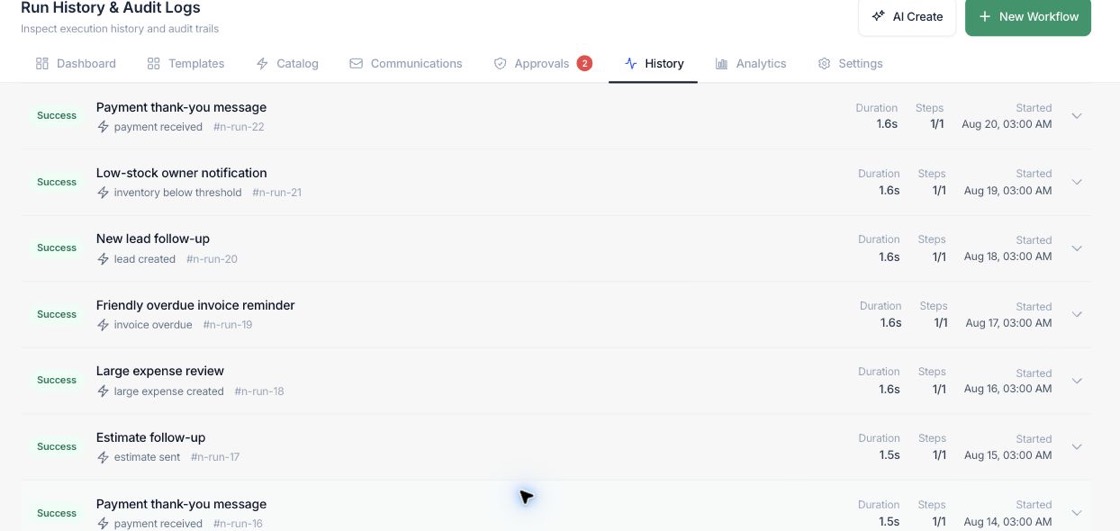
Execution Logs show each run with status, workflow name, trigger, run identifier, duration, step count, and start time.
- Filter all, success, failed, or running runs
- Search by workflow, trigger, or run ID
- Export the visible history for review
Diagnose
Open a run to see step-level results
Expanded runs show each step, duration, status, and any error details so the team can understand where the workflow stopped.
- See completed, running, failed, skipped, pending, and approval-waiting steps
- Review duration and started time
- Identify the failed step before retrying
Recover
Retry failures after the cause is fixed
When retry is available, failed, cancelled, and timed-out runs can be requeued from the history after the underlying issue is addressed.
- Retry Run action appears only when supported
- Cancel and retry controls use server automation handlers
- Recent history keeps support conversations grounded
Everything included
Everything in Run History
Use it for operational review, exception investigation, and workflow maintenance.
Run register
Track every visible automation execution with workflow, trigger, run ID, and status.
History search
Find a run by workflow name, trigger, or run identifier.
Duration tracking
See how long each run and step took to complete.
Status filters
Filter by all, success, failed, or running runs.
Retry action
Retry supported failed, cancelled, or timed-out runs after review.
Export
Use the export action to take run history into an outside review process.
Approval waiting
Identify runs paused while waiting for approval.
How it works
Run History, step by step
- 01
Find the run
Use filters or search to locate the workflow execution that needs review.
- 02
Open the details
Expand the run to inspect step status, timing, and any error text.
- 03
Fix the cause
Update the workflow, record, integration, or approval that caused the exception.
- 04
Retry when available
Use Retry Run for supported statuses and watch the new result in the log.
Connected
Works with the rest of Fratelli
The same records flow between these workspaces automatically.
FAQ
Run History questions
Can’t find what you need? Our team is happy to help.
Yes. Expanded run details include the step list and status so the failed or skipped point is visible.
No. Retry appears only for supported failed, cancelled, or timed-out runs when the retry handler is available.
Yes. Run and step statuses include waiting approval states so paused work is distinguishable from failures.
Try Run History with the rest of Fratelli
Start free in minutes and bring the rest of your team when you are ready.