

Automations
Coordinate recurring work from one automation hub, with workflows, approvals, usage, and recent runs visible before anything becomes hard to trace.
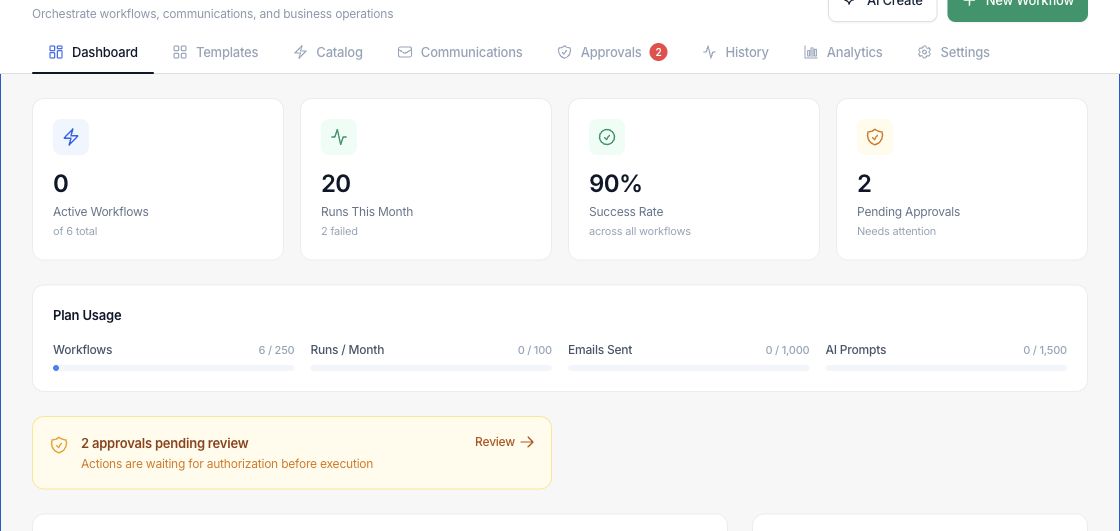
At a glance
The numbers on your screen, explained
What each Automations number means and where it comes from — so you know where to act.
Published workflows that are allowed to run now, compared with the total saved workflow list.
Automation runs recorded during the current month across every workflow.
Completed runs divided by total completed or failed runs in the selected operating period.
Approval gates waiting for a reviewer before the related automation can continue.
Sample numbers from a demo workspace.
Operate
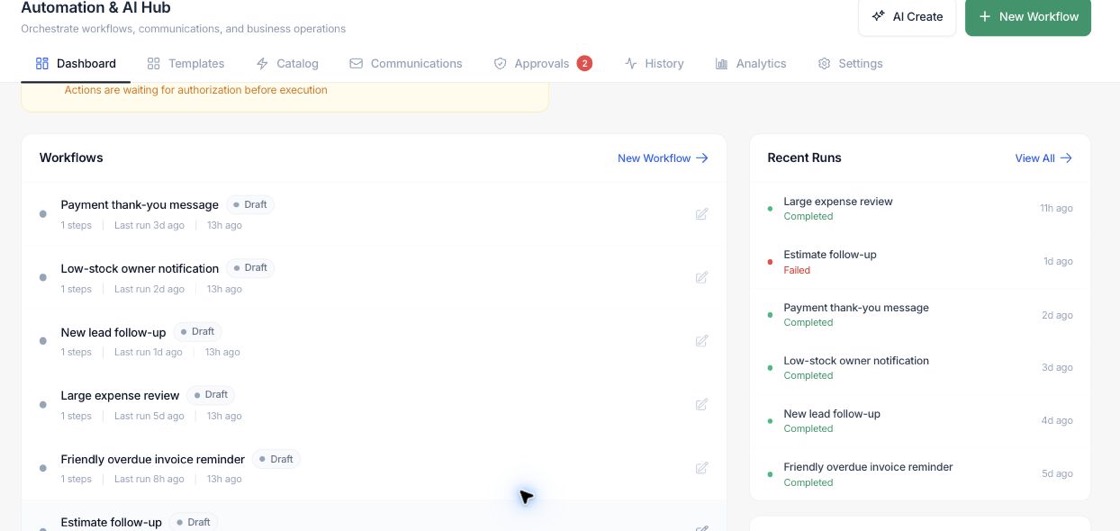
See every workflow and recent run in one place
The dashboard brings workflow status, plan usage, approvals, and recent execution activity together so the team can spot stuck work before customers feel it.
- Active, draft, paused, and failed activity stay visible
- Recent runs show completed and failed outcomes
- Usage meters track workflows, runs, emails, and AI prompts
Coordinate
Turn business events into dependable follow-up
Automations can react to supported events such as invoices, leads, deals, tasks, appointments, payments, inventory, and schedules, then route work to the right next step.
- Create tasks, notifications, record updates, emails, SMS, webhooks, and tickets
- Use filters and conditions so each workflow acts on the right records
- Respect rate limits, quiet hours, delays, and approval gates
Govern
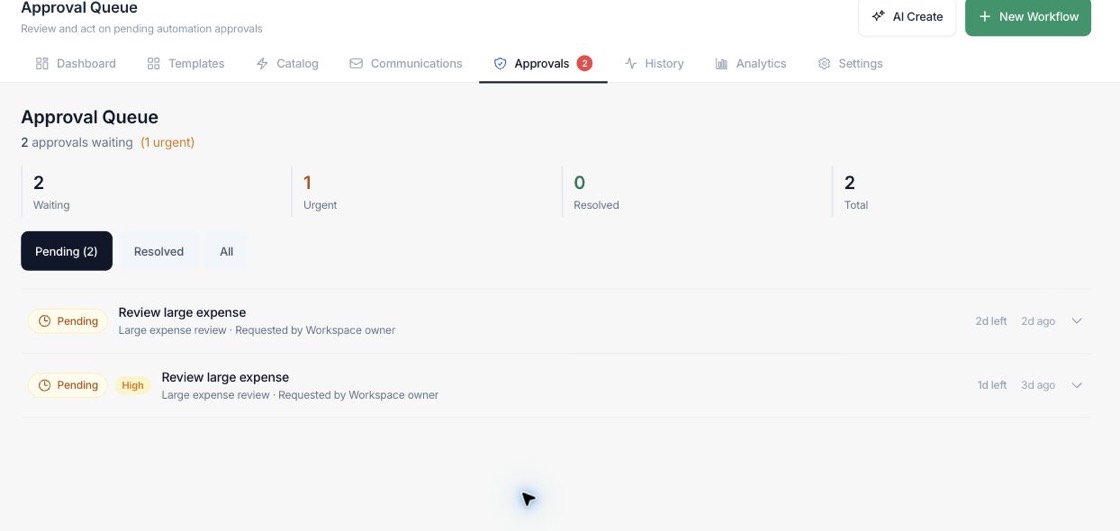
Keep human review in the loop for sensitive actions
Approval gates pause a workflow until the right reviewer approves or rejects the proposed action, with source context attached to the decision.
- Pending approvals surface on the hub
- Approved decisions resume the workflow
- Rejected or expired decisions stay visible for review
Everything included
Everything in Automations
Use it for notifications, task creation, follow-up, record updates, and routing.
Event triggers
Start workflows from invoices, leads, deals, tasks, payments, inventory, appointments, and scheduled checks.
Conditions and branches
Add if/else logic and branching so one process can handle different customer or record states.
Delays and quiet hours
Wait between steps and park work until the configured time window is safe to continue.
Approval gates
Pause controlled actions for reviewer sign-off, notes, and an auditable decision.
Email and SMS actions
Send customer or team messages through configured email and SMS channels.
Webhook support
Use signed webhook URLs and outbound webhook actions when a workflow needs to connect with another tool.
Retries and recovery
Retry failed runs, resume parked runs, and review exceptions from the run history.
Performance analytics
Review executions, success rate, duration, time saved, trends, and status distribution.
How it works
Automations, step by step
- 01
Choose the business event
Start with a trigger such as invoice overdue, new lead, payment received, low stock, appointment booked, or a schedule.
- 02
Add rules and actions
Define conditions, delays, approvals, messages, task creation, record updates, webhooks, or notifications.
- 03
Test before going live
Run the workflow in sandbox mode so the team can review each step before real emails, tasks, or webhooks execute.
- 04
Monitor and improve
Use approvals, history, analytics, and failed-run retries to keep the workflow healthy over time.
Connected
Works with the rest of Fratelli
The same records flow between these workspaces automatically.
FAQ
Automations questions
Can’t find what you need? Our team is happy to help.
Yes. Supported actions include email and SMS. SMS delivery depends on the workspace SMS integration being configured, and email actions use the app messaging flow.
Yes. The builder includes a test run path that runs in sandbox mode, skips real delays and approvals, and reports what each step would do.
Failed runs appear in Run History with step status and timing. Where supported, the team can retry the failed run after fixing the cause.
Try Automations with the rest of Fratelli
Start free in minutes and bring the rest of your team when you are ready.