

Purchase Orders
Prepare supplier orders, monitor what is late or partly received, and receive stock into the right warehouse with the order history intact.
At a glance
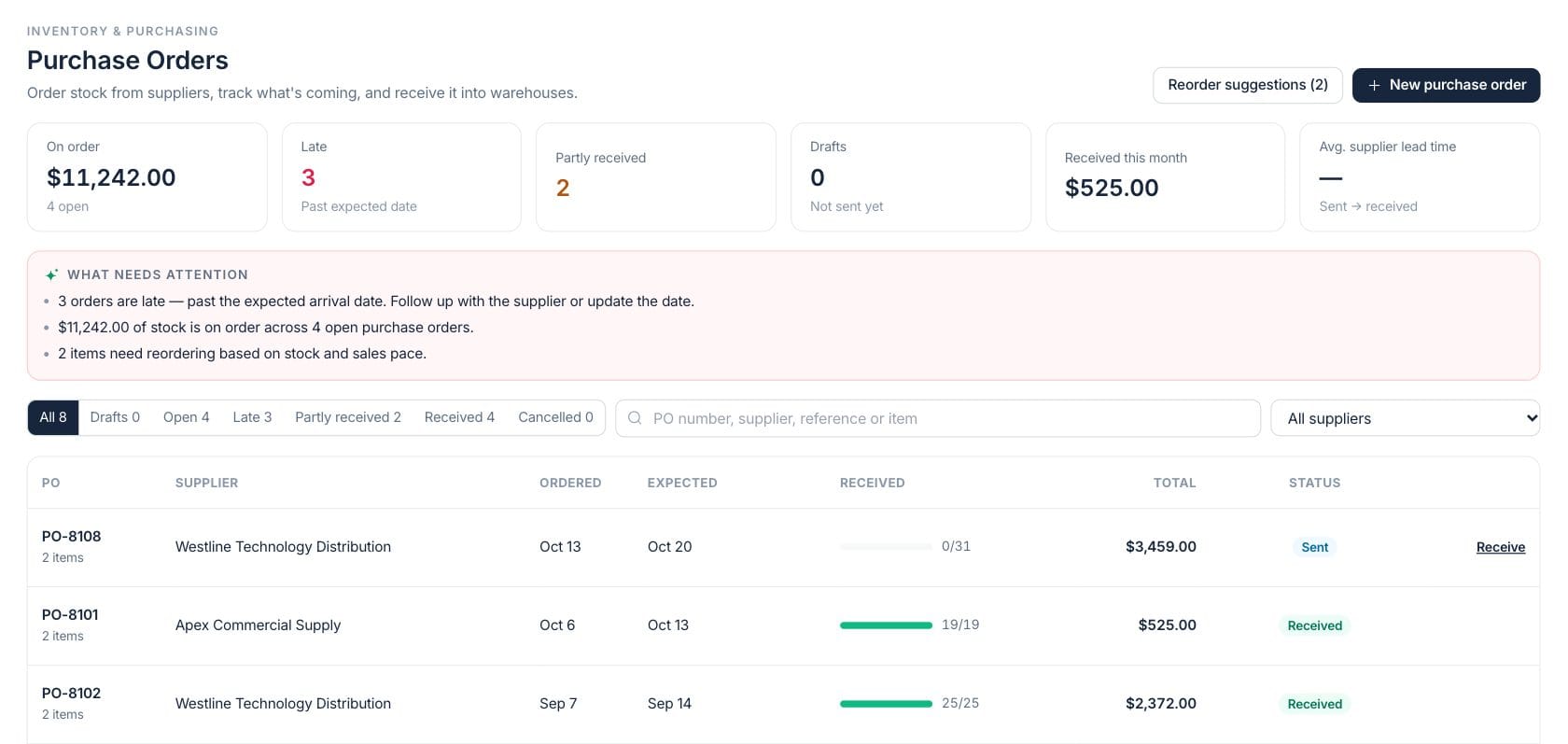
The numbers on your screen, explained
What each Purchase Orders number means and where it comes from — so you know where to act.
Value remaining on open purchase orders that have not been fully received or cancelled.
Open purchase orders whose expected arrival date has passed.
Orders where some units have arrived but one or more lines still have quantities due.
Supplier order value received during the current calendar month.
Sample numbers from a demo workspace.
Order list
See every supplier order by status, arrival date, progress, and total
The purchase order workspace separates drafts, open orders, late orders, partly received orders, received orders, and cancellations so buyers can work the right queue first.
- Search by PO number, supplier, reference, or item
- Filter by supplier and status
- Receive sent or partly received orders from the list
Order detail
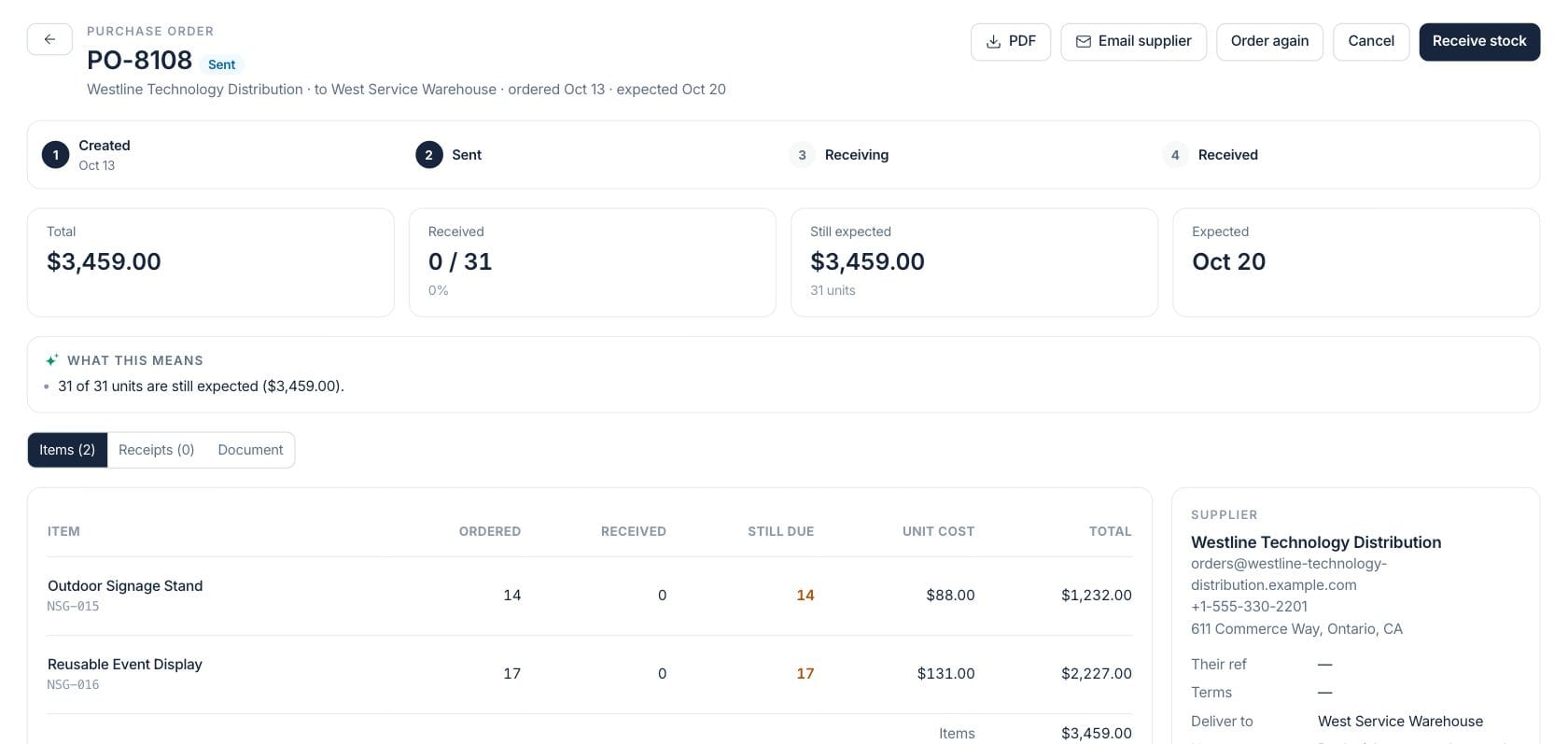
Open a PO to review supplier terms, line items, receipts, and the document
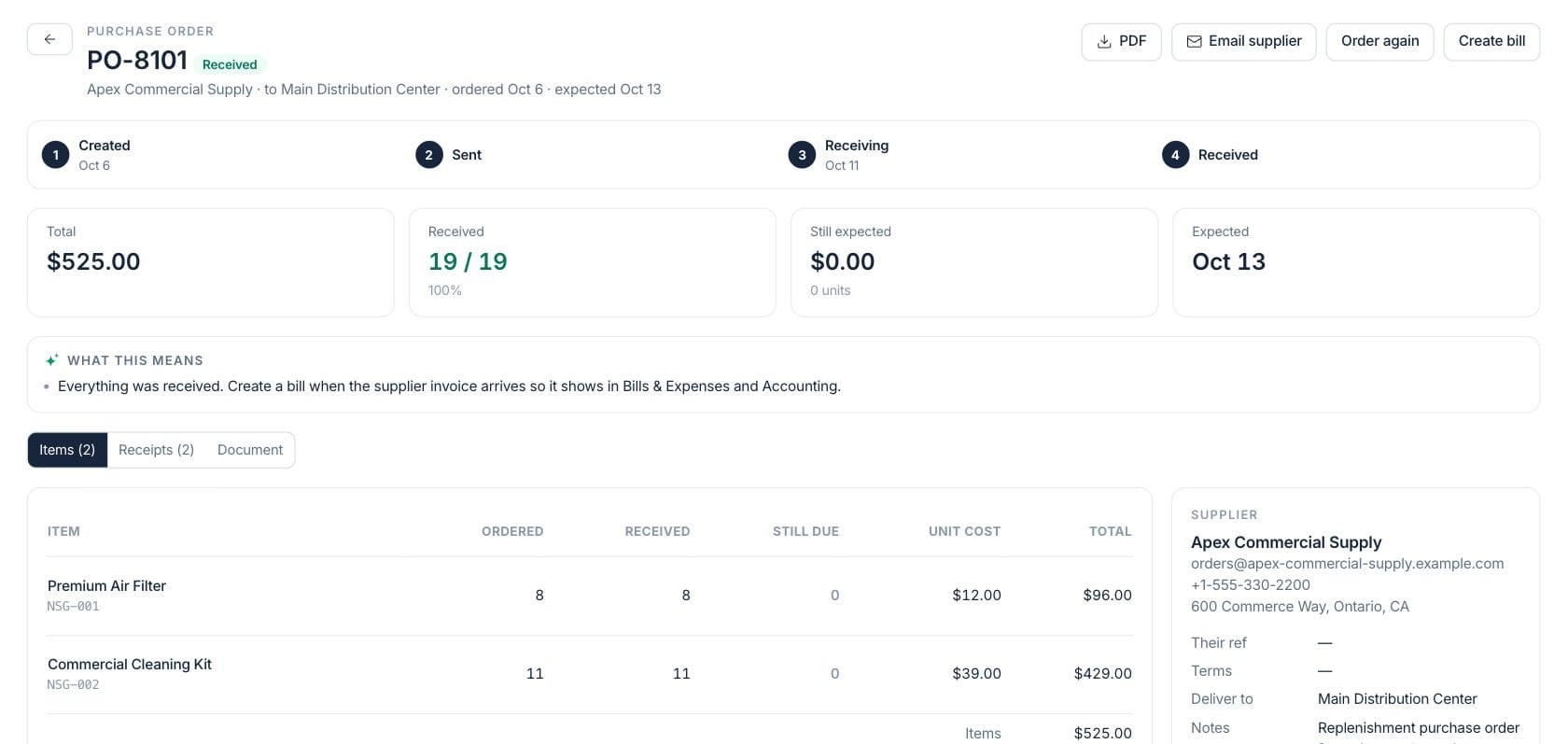
Each order has a lifecycle timeline, totals, still-expected quantities, supplier reference, payment terms, delivery instructions, receipt history, and a printable purchase order document.
- Compare ordered, received, and still due quantities
- Add shipping and tax to the supplier total
- Download or email the purchase order document
Receiving
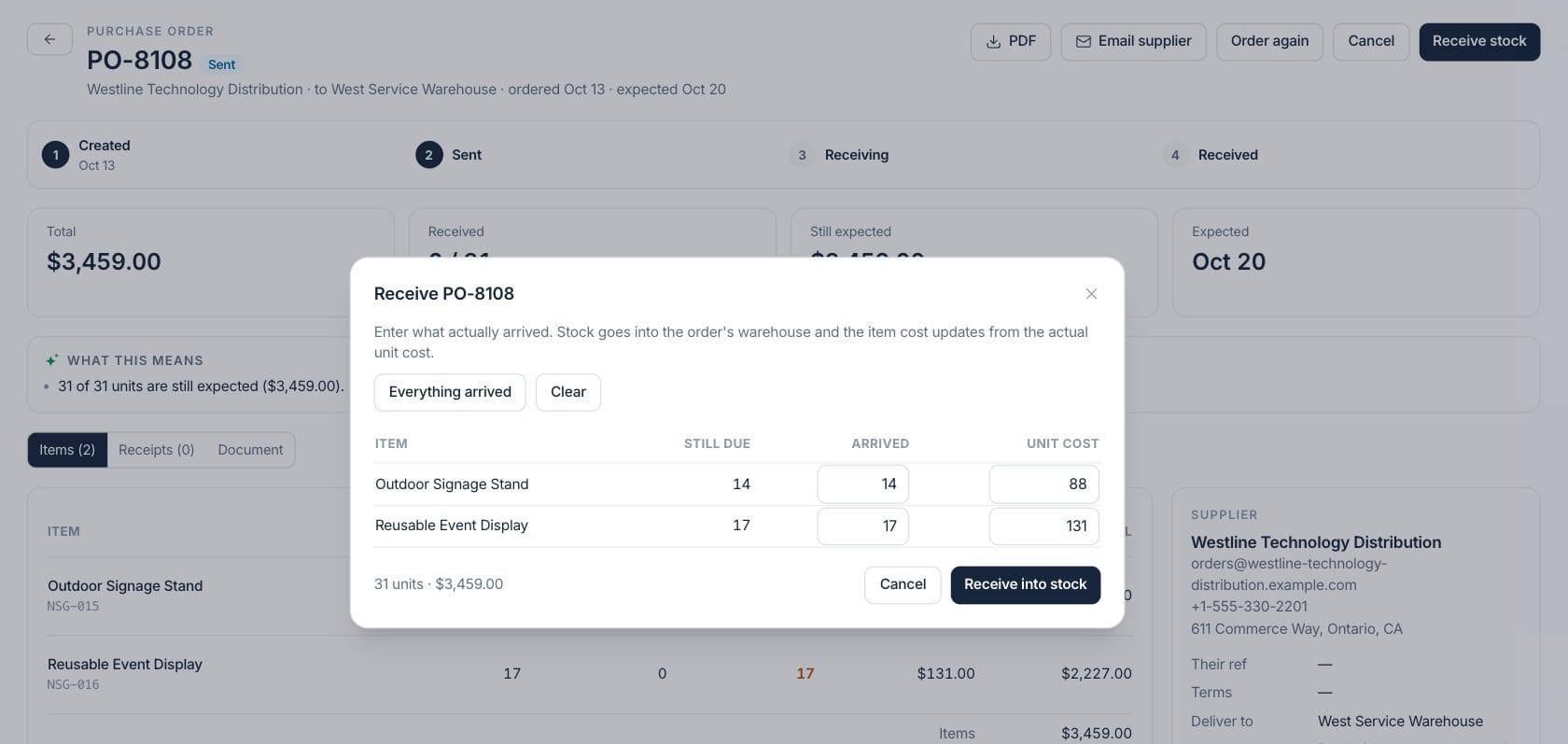
Receive partial shipments without losing the original order
When stock arrives, receive only the units that came in. The order stays open until all due quantities are received, and the stock movement history shows what changed.
- Receive all at once or line by line
- Keep expected dates and late status visible
- Turn received order context into the next bill workflow
Everything included
Everything in Purchase Orders
Use it for routine procurement, special orders, and planned stock replenishment.
Draft-to-received lifecycle
Track draft, sent, partly received, received, and cancelled stages with timestamps and status filters.
Supplier ordering
Choose supplier, warehouse, expected date, supplier reference, payment terms, and delivery instructions.
Line-level receiving
See ordered, received, and still due units for every product line before receiving more stock.
Purchase totals
Calculate item totals with shipping and tax so buyer and supplier amounts stay aligned.
Late order focus
Late and partly received views keep follow-up work visible without scanning every order.
Printable PO document
Preview and download the supplier-facing purchase order from the same record.
Warehouse receipt context
Orders are tied to a delivery warehouse so received units land in the right stock location.
How it works
Purchase Orders, step by step
- 01
Start from a supplier or reorder need
Create a purchase order manually or from reorder suggestions grouped by preferred supplier.
- 02
Confirm terms and items
Review supplier reference, dates, payment terms, delivery instructions, quantities, costs, shipping, and tax.
- 03
Send and receive
Mark the order sent, then receive full or partial shipments as stock arrives.
- 04
Follow late and open work
Use late, open, and partly received views to chase suppliers or update expected dates.
Connected
Works with the rest of Fratelli
The same records flow between these workspaces automatically.
FAQ
Purchase Orders questions
Can’t find what you need? Our team is happy to help.
Yes. The receiving workflow records quantities against each line, keeps the remaining units due, and marks the order partly received until it is complete.
Yes. The reorder view can prefill a purchase order by supplier with suggested items and quantities, which the buyer can review before saving.
Yes. Purchase orders include supplier reference, payment terms, delivery instructions, shipping cost, tax amount, and line-level costs.
Try Purchase Orders with the rest of Fratelli
Start free in minutes and bring the rest of your team when you are ready.