

Stock Alerts
Focus purchasing on items that are out, low, or projected to run out before the next order can arrive.
At a glance
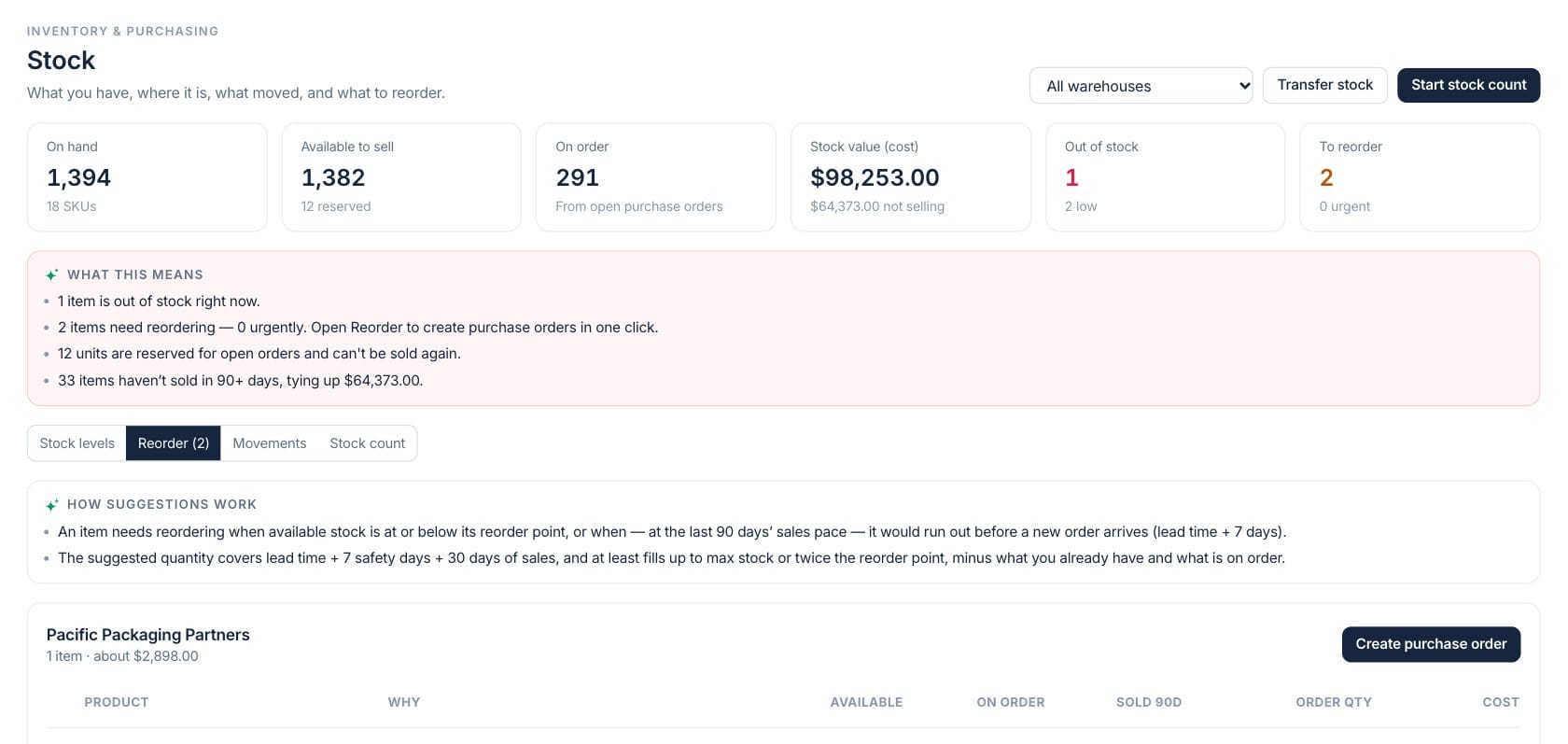
The numbers on your screen, explained
What each Stock Alerts number means and where it comes from — so you know where to act.
Stock lines with no available units, with the hint showing low-stock lines in the same workspace.
Items that have reached reorder rules or are projected to run short based on sales pace and lead time.
Current cost value of stock, with slow-moving value highlighted when cost access is available.
Units already expected from open purchase orders, used before recommending more buying.
Sample numbers from a demo workspace.
Reorder
Turn low-stock signals into supplier-ready purchase orders
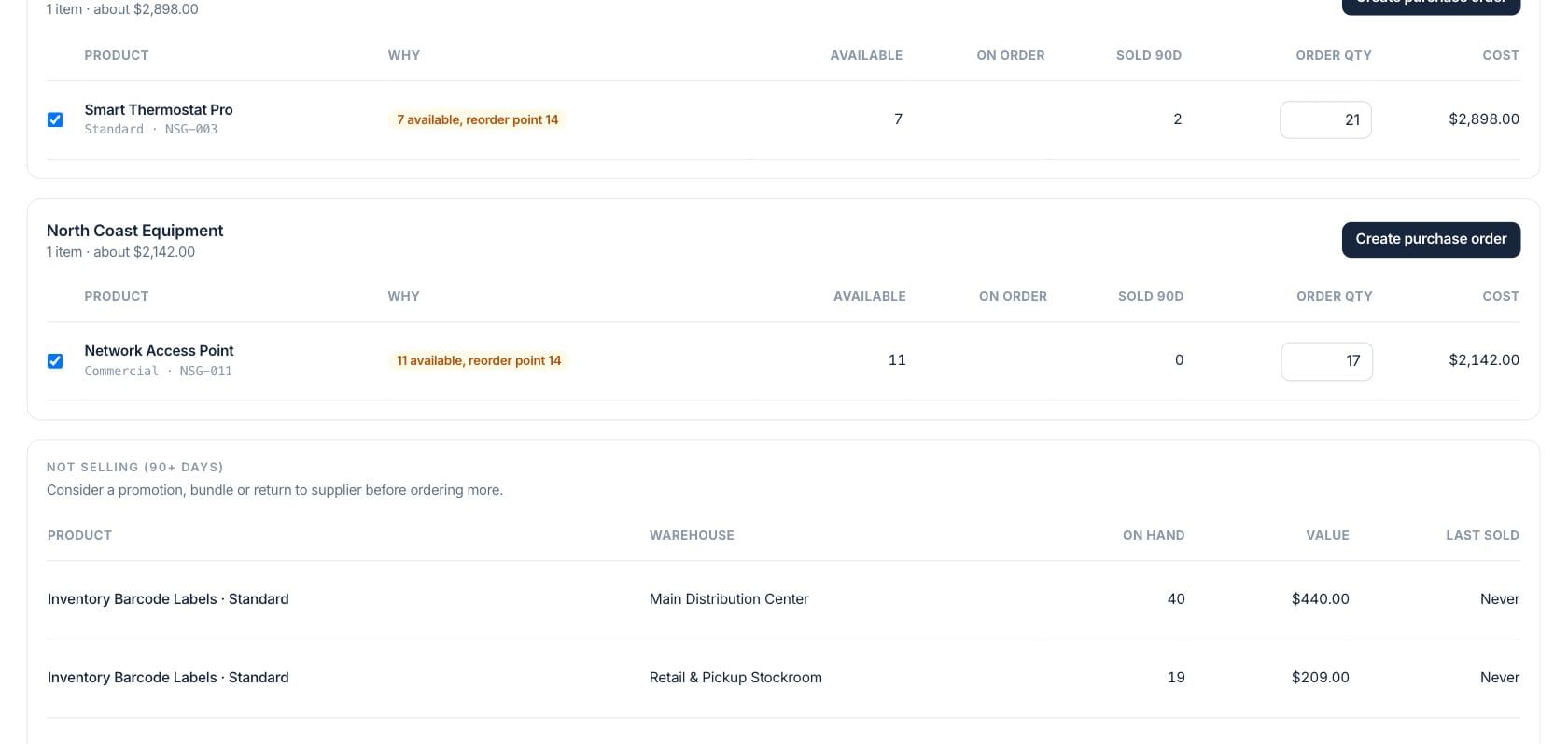
The reorder tab groups suggestions by preferred supplier, explains why each item needs buying, and lets the buyer adjust order quantities before creating a purchase order.
- Group suggested items by preferred supplier
- See available units, on order units, and 90-day sales
- Create a purchase order from selected suggestions
Rules
Explain why an item appears before someone buys more
Suggestions use reorder points plus sales pace, lead time, safety days, max stock, existing availability, and units already on order. Slow-moving stock is called out so teams do not overbuy.
- At or below reorder point triggers review
- Sales pace can trigger projected runout
- Dead stock is shown before placing new orders
Action
Choose whether to buy, transfer, or clean up the product setup
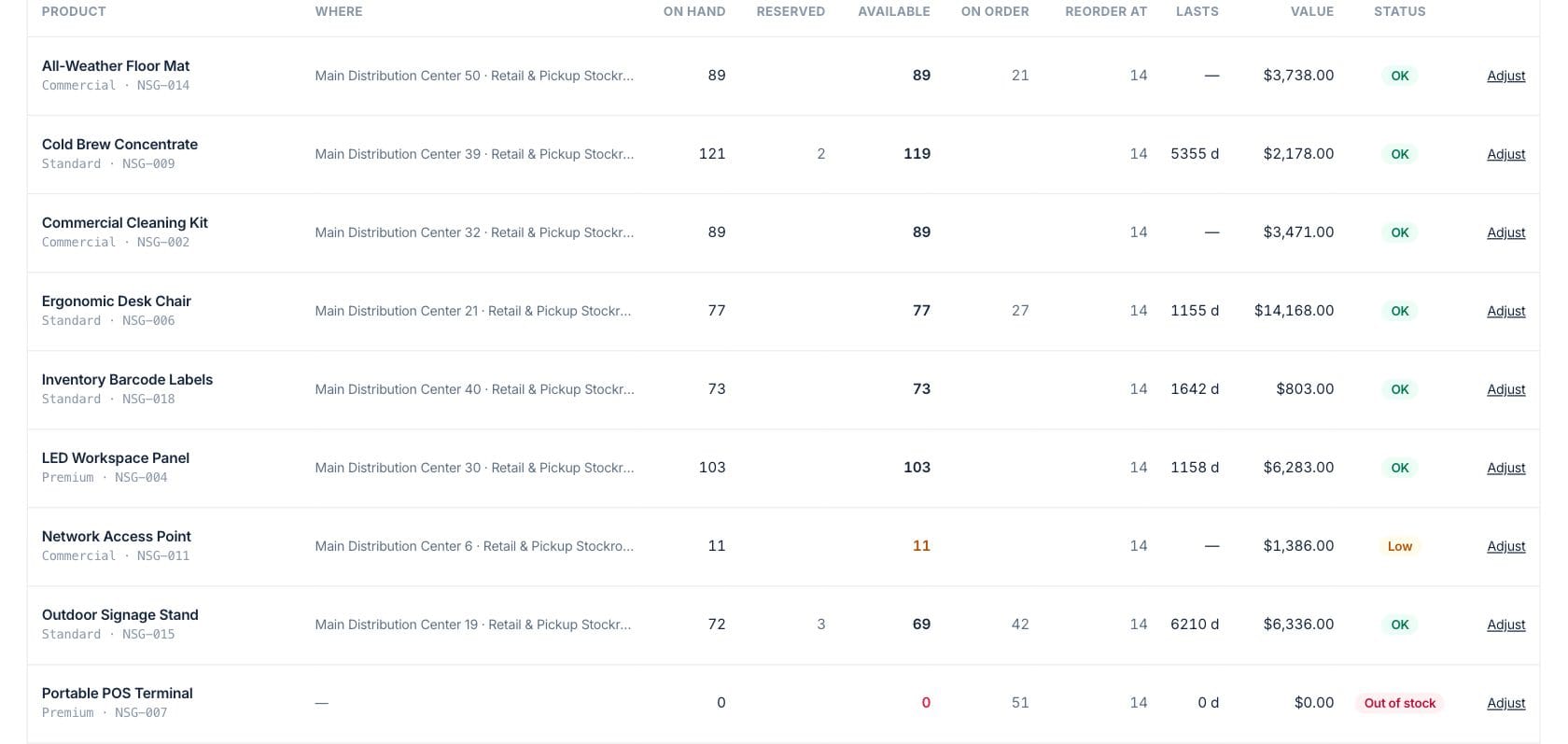
Alerts connect to product records, purchase orders, warehouses, and transfers so the next move can be a reorder, a stock transfer, or a supplier and threshold cleanup.
- Open the product behind an alert
- Use preferred supplier when it is set
- Spot products missing supplier setup
Everything included
Everything in Stock Alerts
Use it for low-stock review, reorder planning, and exception-based inventory work.
Low and out alerts
Highlight products that fall below reorder points or have no available stock.
Sales pace planning
Use the last 90 days of sales with lead time to identify items likely to run short.
Supplier grouping
Group reorder suggestions by preferred supplier to prepare cleaner purchase orders.
Suggested quantity
Suggest quantities based on lead time, safety days, sales pace, max stock, and units already on order.
Warehouse context
Review the item, stock location, available quantity, and incoming stock before ordering.
Transfer alternative
When another site has spare stock, stock transfers can rebalance inventory instead of buying more.
How it works
Stock Alerts, step by step
- 01
Review the alert queue
Open the Reorder tab to see out, critical, and low items sorted into supplier groups.
- 02
Check the reason
Confirm whether the item is below reorder point, projected to run out, or missing supplier context.
- 03
Adjust quantities
Change suggested order quantities when a buyer has better demand or supplier information.
- 04
Create the PO
Create a supplier purchase order from selected alert rows, then receive it when stock arrives.
Connected
Works with the rest of Fratelli
The same records flow between these workspaces automatically.
FAQ
Stock Alerts questions
Can’t find what you need? Our team is happy to help.
An item appears when available stock is at or below its reorder point, or when recent sales pace suggests it could run out before lead time plus safety days.
Yes. Suggested quantities subtract what is available and what is already on open purchase orders.
Yes. Stock transfers and rebalance suggestions help move spare units from one location to another when that is the better answer.
Try Stock Alerts with the rest of Fratelli
Start free in minutes and bring the rest of your team when you are ready.