

Payment Plans
Split an invoice balance into scheduled installments, track every due date, and keep collections, reminders, and customer requests in one payment-plan workspace.
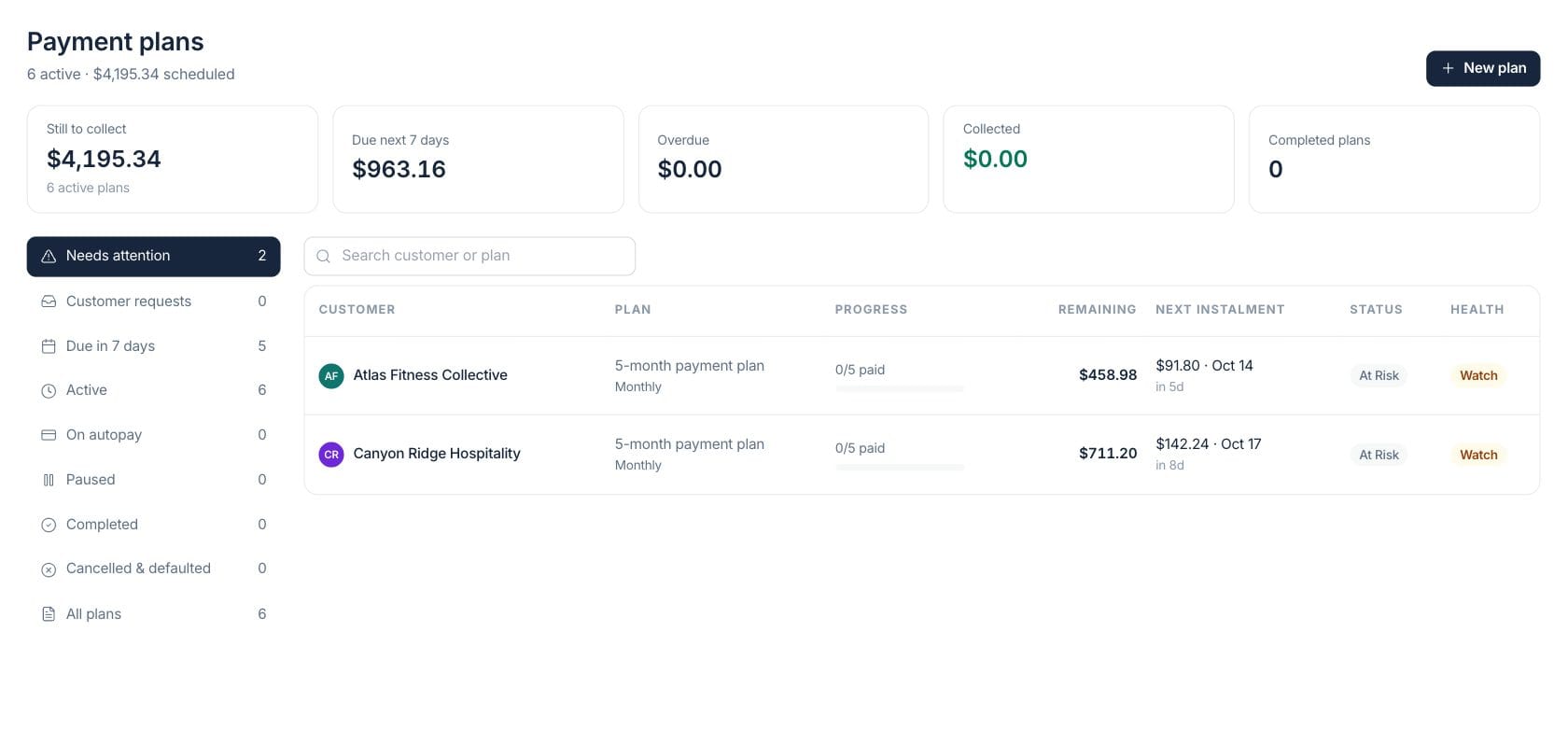
At a glance
The numbers on your screen, explained
What each Payment Plans number means and where it comes from — so you know where to act.
Open installment balances are summed across active plans after recorded payments are applied.
Unpaid installments with due dates in the next seven days are totaled so finance can prioritize reminders.
Past-due open installments are added together and surfaced in the needs-attention view.
Payments recorded against linked invoices are counted as collected for their payment plans.
Sample numbers from a demo workspace.
Plan
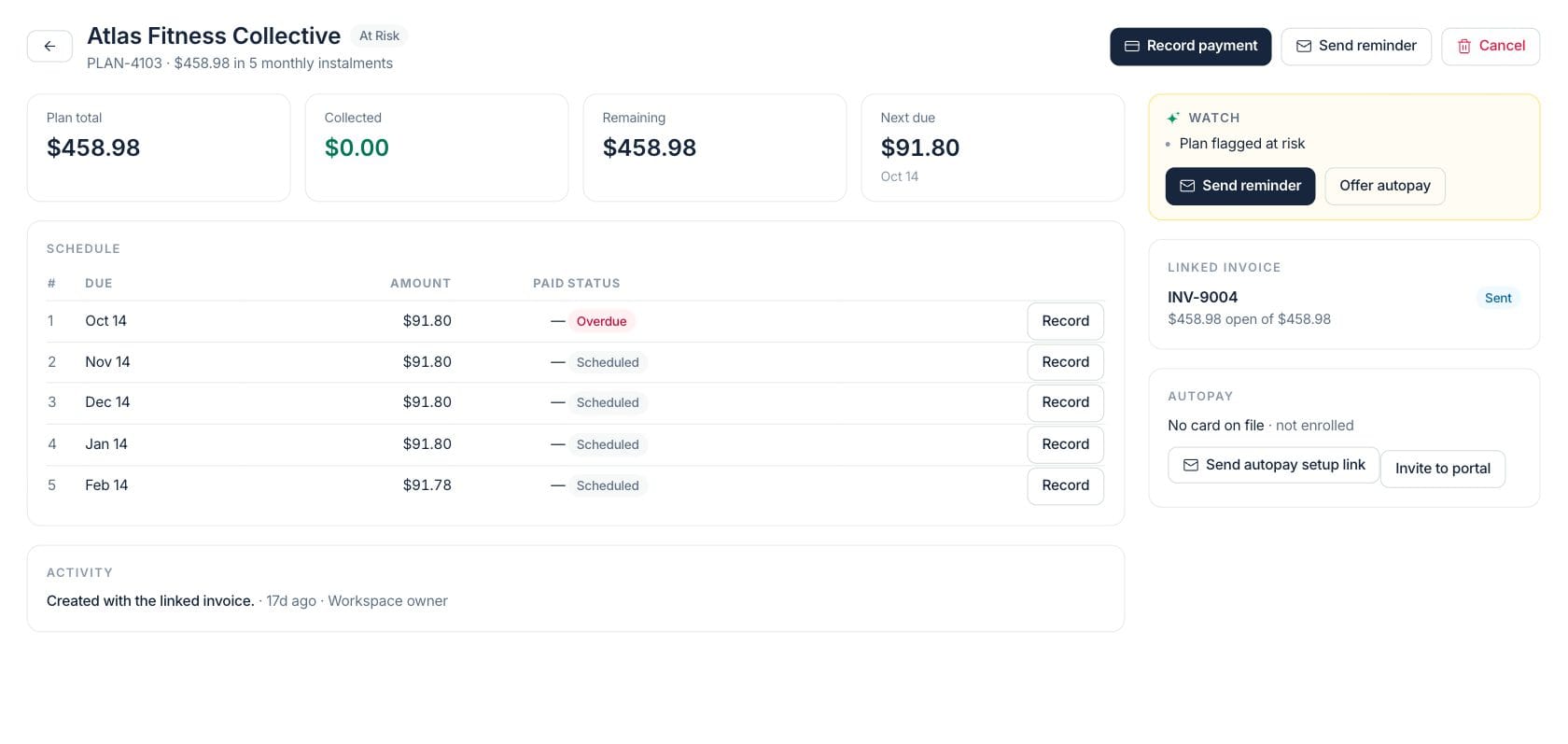
Turn one invoice into a clear installment schedule
Create a plan from an open invoice, set the frequency and down payment, then review each installment amount, due date, and status as the customer pays.
- Original balance, remaining balance, and status stay visible
- Installment table shows paid, scheduled, and overdue items
- Linked invoice remains the source for recorded payments
Collect
Record payments and send reminders from the plan
The plan detail page shows the next due amount, linked invoice, autopay status, and actions for reminders or payment recording, giving finance one place to manage collection.
- Record payment on the linked invoice
- Send reminder or autopay setup email
- Pause, resume, cancel, or update the plan status
Risk
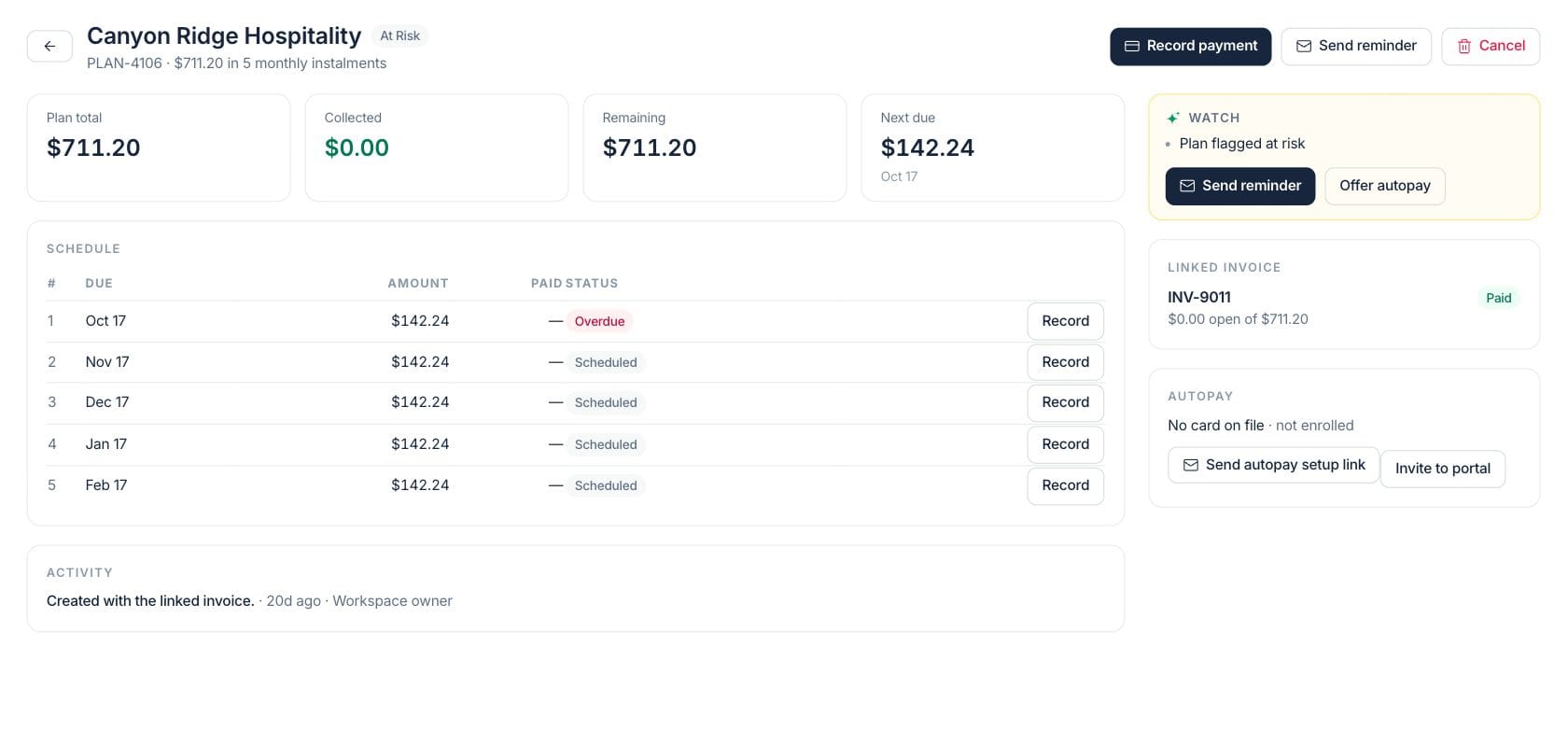
Spot default risk before a plan gets away from you
Payment plans explain risk with overdue installments, late-payment patterns, failed autopay, and hardship requests so the team can decide whether to remind, adjust, or escalate.
- Needs-attention view groups risky plans
- Customer request inbox for payoff, hardship, and due-date changes
- Health label explains why a plan is on track or at risk
Everything included
Everything in Payment Plans
Use it for deposits, milestone payments, financed purchases, or negotiated settlements.
Installment schedule
Set due dates and amounts for each installment on an agreed balance.
Linked invoice
Keep plan collection tied to the invoice where payments are actually recorded.
Autopay prompts
See whether autopay is enrolled and send setup links when a customer needs to add a payment method.
Reminder emails
Send plan reminders directly from the plan detail when an installment is due or late.
Pause and resume
Temporarily pause collection and optionally shift remaining due dates when the plan resumes.
Customer requests
Review payoff, due-date-change, autopay, and hardship requests from customers.
Default risk
Use risk reasons to understand overdue amounts, failed attempts, or payment behavior.
Completion tracking
See how many plans are completed and how much has been collected over time.
How it works
Payment Plans, step by step
- 01
Start from an open invoice
Choose the invoice balance to split, then define the down payment, frequency, and installment count.
- 02
Confirm the schedule
Review each due date and amount before the plan becomes active.
- 03
Collect against the invoice
Record payments on the linked invoice so the plan and invoice stay in sync.
- 04
Follow up on risk
Use overdue, due-this-week, and customer-request views to decide who needs a reminder or adjustment.
Connected
Works with the rest of Fratelli
The same records flow between these workspaces automatically.
FAQ
Payment Plans questions
Can’t find what you need? Our team is happy to help.
No. A plan organizes collection for an invoice balance. Payments are still recorded on the linked invoice, which keeps accounting and customer history aligned.
Yes. A plan can be paused and resumed. When resuming, the workspace can shift the remaining due dates if needed.
Yes. Requests such as payoff, due-date changes, autopay updates, and hardship help appear in the plan request inbox.
Try Payment Plans with the rest of Fratelli
Start free in minutes and bring the rest of your team when you are ready.