

Leads
Capture early interest, rank it by score, keep response times visible, and convert qualified leads into customers and deals.
At a glance
The numbers on your screen, explained
What each Leads number means and where it comes from — so you know where to act.
Leads in active statuses, excluding converted, unqualified, and archived records.
Open leads graded A or B from the lead scoring model.
Open leads due for follow-up based on next follow-up time or recent activity age.
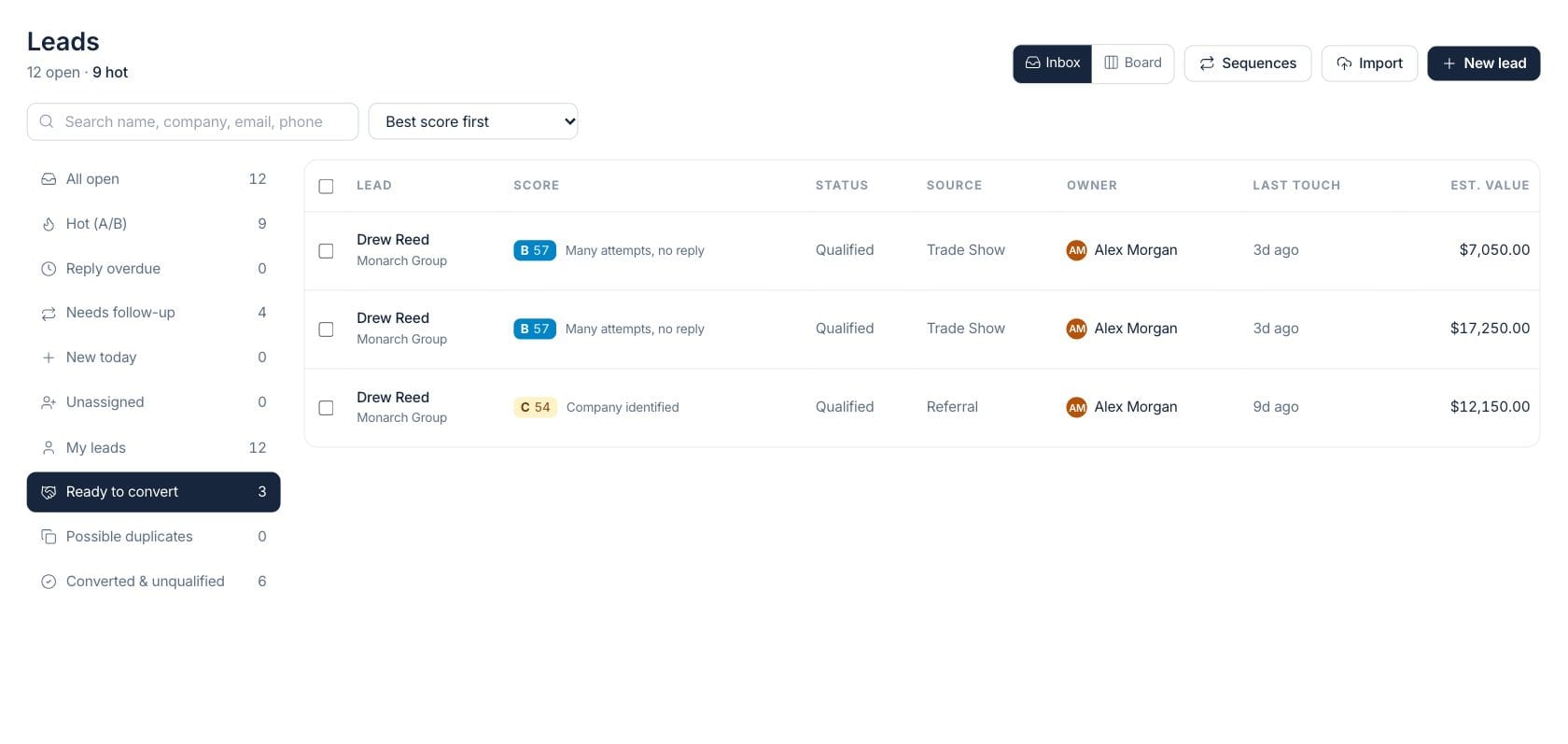
Qualified leads ready to become a customer and deal.
Sample numbers from a demo workspace.
Inbox
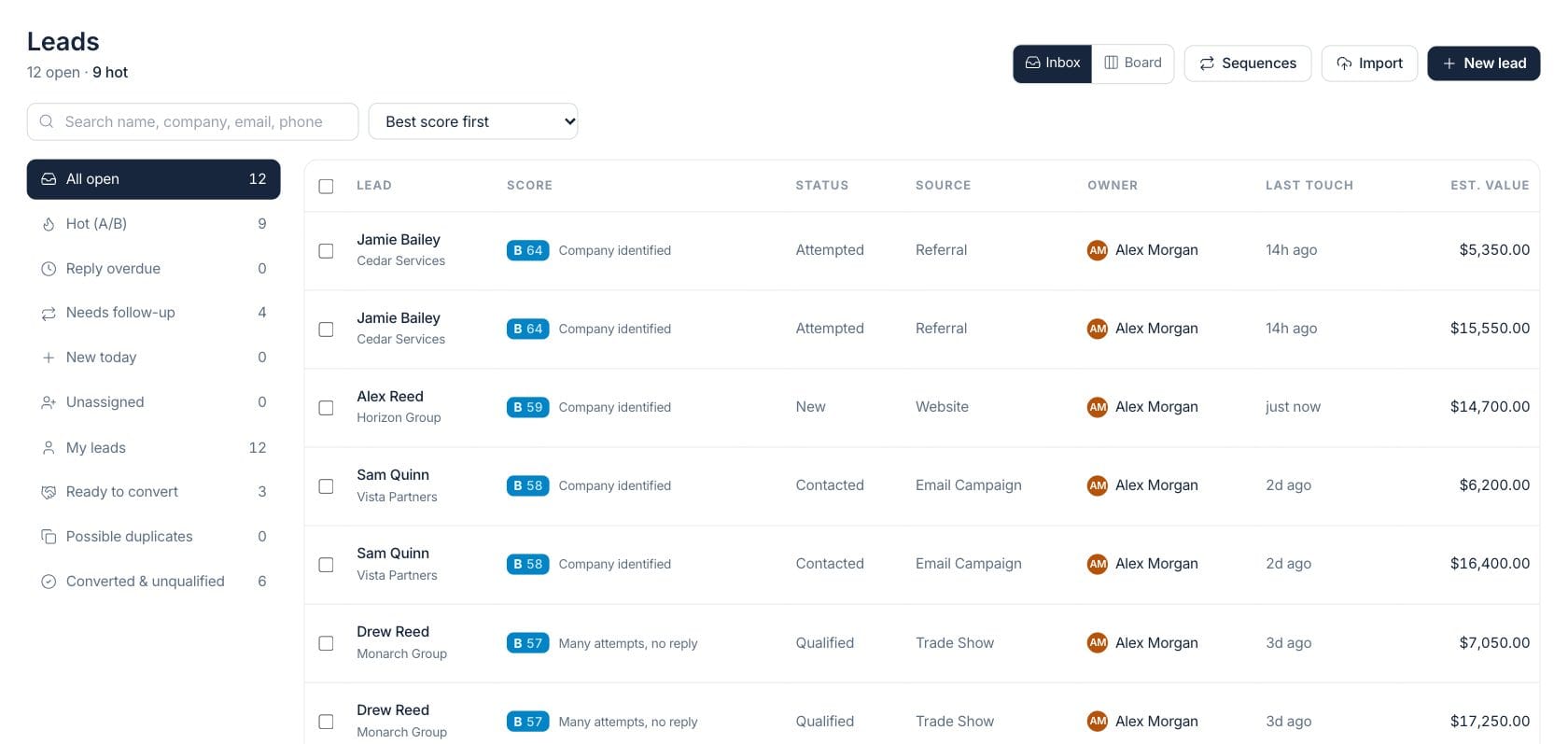
Rank new demand by score, owner, source, and follow-up need
The inbox sorts leads by score, newest date, value, or longest without contact. Side views show hot leads, reply overdue, follow-up due, new today, unassigned, duplicates, and qualified records.
- Score grade and reason on each lead
- Source, owner, last touch, and estimated value columns
- Reply-overdue and follow-up filters
- Bulk assign, status update, and sequence enrollment
Board
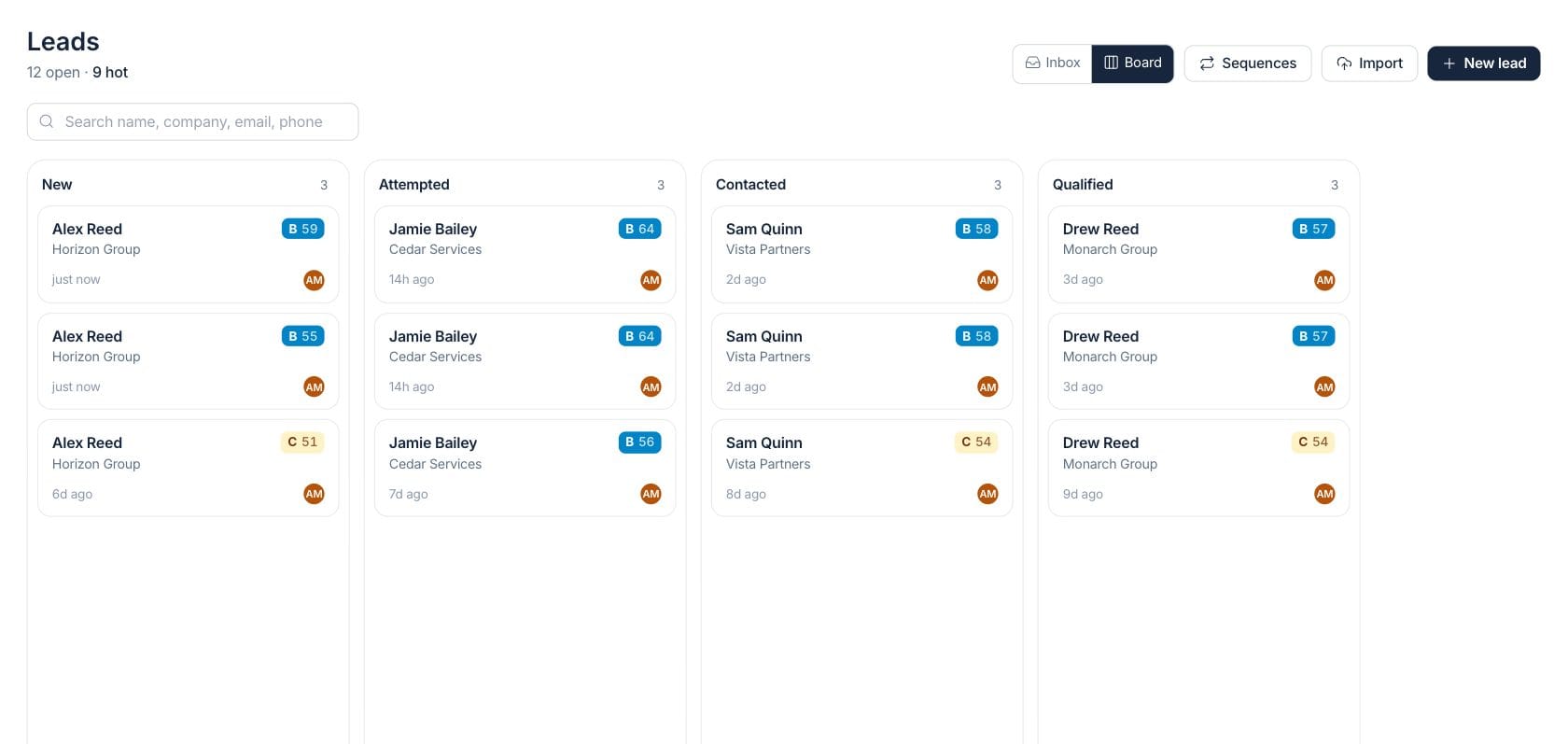
Qualify leads with a drag-and-drop stage board
Switch to board view when the team wants to work leads visually. Cards move between New, Attempted, Contacted, and Qualified, with conversion and unqualified drop zones available during drag.
- Board view by lead status
- Cards show score, age, and owner
- Drag to update status
- Drop qualified leads into conversion
Sequences
Keep follow-up consistent for selected leads
Selected leads can be enrolled into active CRM sequences from the leads workspace, helping owners keep outreach steps consistent after import, events, or referrals.
- Sequences button in the leads header
- Bulk enroll selected leads
- Import leads from a CSV workflow
- Convert qualified leads when ready
Everything included
Everything in Leads
Use it for inbound inquiries, referral follow-up, events, and outbound prospecting.
Lead inbox
Filter active leads by hot, reply overdue, follow-up, new today, unassigned, mine, qualified, or duplicate.
Lead scores
Score grades and reasons help owners understand which leads deserve attention first.
Lead board
Move leads across status columns with drag and drop.
Assignment
Assign selected leads to owners individually or in bulk.
Import
Bring in lists from events, referrals, or campaigns through the import flow.
Sequences
Enroll selected leads in active follow-up sequences from the workspace.
Duplicate review
Possible duplicate leads are flagged when contact details overlap.
Conversion
Qualified leads can move into customer and deal workflows.
How it works
Leads, step by step
- 01
Capture or import leads
Add new inquiries manually or import a list from a campaign, event, or referral source.
- 02
Sort by score and urgency
Use score, reply overdue, follow-up, owner, and source to choose the next outreach.
- 03
Qualify the conversation
Move leads through statuses as the team attempts contact, connects, and confirms fit.
- 04
Convert qualified demand
Turn the right leads into customer and deal records so pipeline work can begin.
Connected
Works with the rest of Fratelli
The same records flow between these workspaces automatically.
FAQ
Leads questions
Can’t find what you need? Our team is happy to help.
Yes. The workspace has an inbox table for fast triage and a board view for drag-and-drop qualification.
Hot leads are open leads with A or B grades from the scoring logic.
Yes. Select rows in the inbox and use bulk actions to assign owners, change status, or enroll in a sequence.
Try Leads with the rest of Fratelli
Start free in minutes and bring the rest of your team when you are ready.