

Data Import
Upload spreadsheets, CSVs, or Excel files, let AI analyze the structure, map fields, validate records, preserve unsupported data, and review before import.
At a glance
The numbers on your screen, explained
What each Data Import number means and where it comes from — so you know where to act.
Rows converted into staged import records before any workspace records are written.
Spreadsheet rows reviewed through mapping, validation, duplicate checks, and preview.
Potential duplicate records found during validation before import confirmation.
Fields grouped as unsupported so the user can review them instead of silently dropping data.
Sample numbers from a demo workspace.
Upload
Bring in spreadsheets without writing directly to records
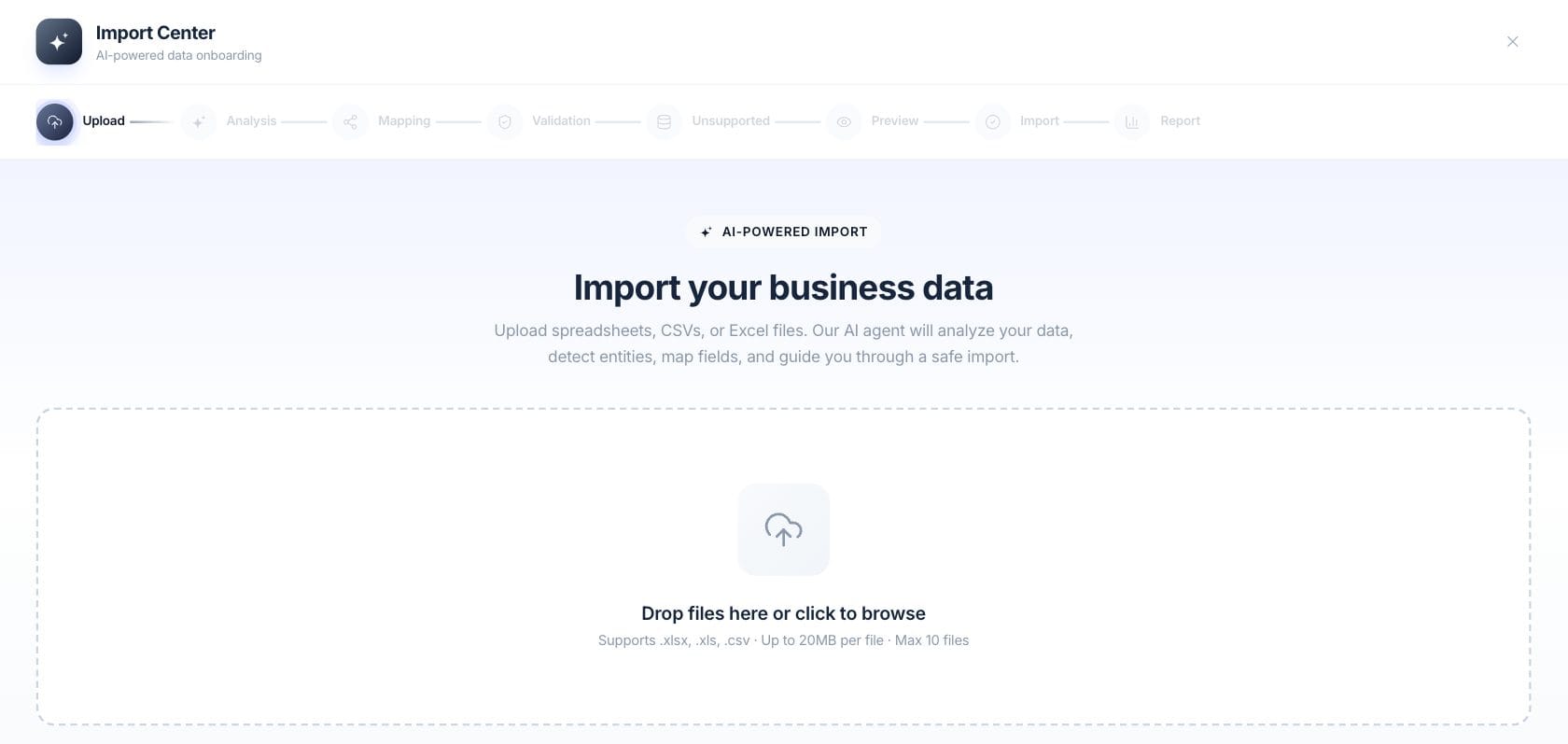
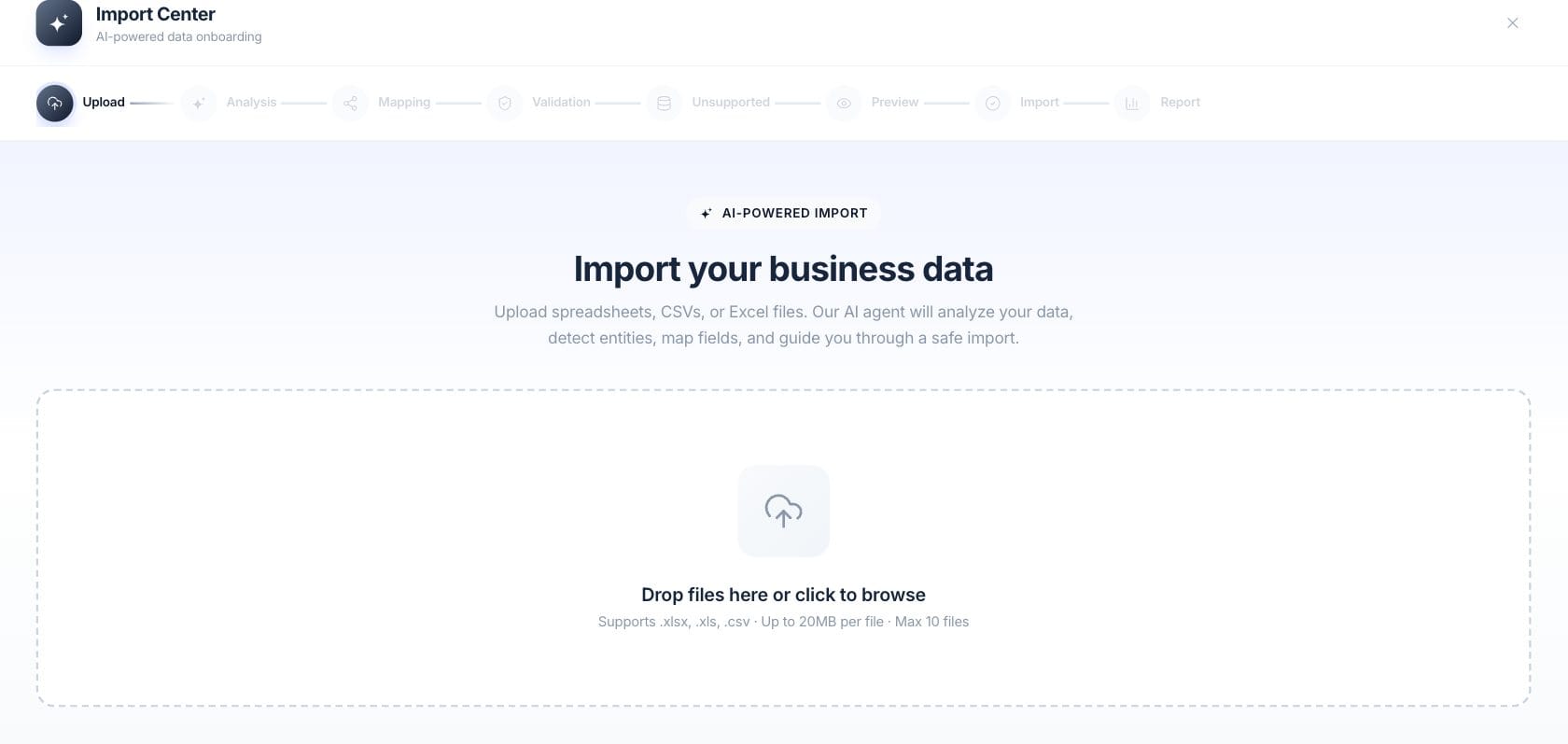
The wizard starts with a drag-and-drop upload for .xlsx, .xls, and .csv files, then keeps the early steps staged for review before changes are applied.
- Supports spreadsheets, CSVs, and Excel files
- Up to 20MB per file and 10 files per import
- Steps before import are staging and review
Analyze
Use AI to detect entities and relationships
The import agent analyzes file content, suggests structure, helps map fields, and generates insights so users can understand what the data contains.
- Detects entities and relationships from file content
- Builds records for supported import collections
- Generates data quality and import notes
Review
Validate, preview, and preserve unsupported data
Before import, the wizard checks duplicates, warnings, unsupported data, action previews, and a confirmation step so users know what will be created or updated.
- Unsupported data is grouped and preserved
- Preview shows the exact planned actions
- Import writes happen only after confirmation
Everything included
Everything in Data Import
Use it for initial setup, catalog updates, customer lists, and structured record migration.
Spreadsheet upload
Accept .xlsx, .xls, and .csv files through drag and drop or file picker.
AI analysis
Analyze content to detect entities, relationships, and likely mappings.
Record staging
Build import records before committing them to the workspace.
Validation
Check errors, warnings, duplicates, and confidence scores before import.
Safe preview
Show the planned actions before changes are applied.
Unsupported data handling
Group and preserve unsupported data instead of silently dropping it.
Import report
Generate a post-import report with summary, highlights, and notes.
Session restore
Restore an active import session for the business when work is interrupted.
How it works
Data Import, step by step
- 01
Upload files
Add supported spreadsheet or CSV files to start a staged import session.
- 02
Analyze and map
Let the import agent analyze the files, then review and adjust field mappings.
- 03
Validate and preview
Review duplicates, warnings, unsupported data, and the planned actions.
- 04
Confirm the import
Commit the import only after the preview and confirmation step are complete.
Connected
Works with the rest of Fratelli
The same records flow between these workspaces automatically.
FAQ
Data Import questions
Can’t find what you need? Our team is happy to help.
No. The wizard stages analysis, mapping, validation, unsupported data review, and preview before the import confirmation step writes records.
The upload screen supports .xlsx, .xls, and .csv files, up to 20MB per file and up to 10 files.
Unsupported data is grouped and preserved for review instead of being silently dropped.
Try Data Import with the rest of Fratelli
Start free in minutes and bring the rest of your team when you are ready.