

Cost Centers
Classify spending by department, location, program or team, then compare budget, actual spend, forecast and unassigned activity.
At a glance
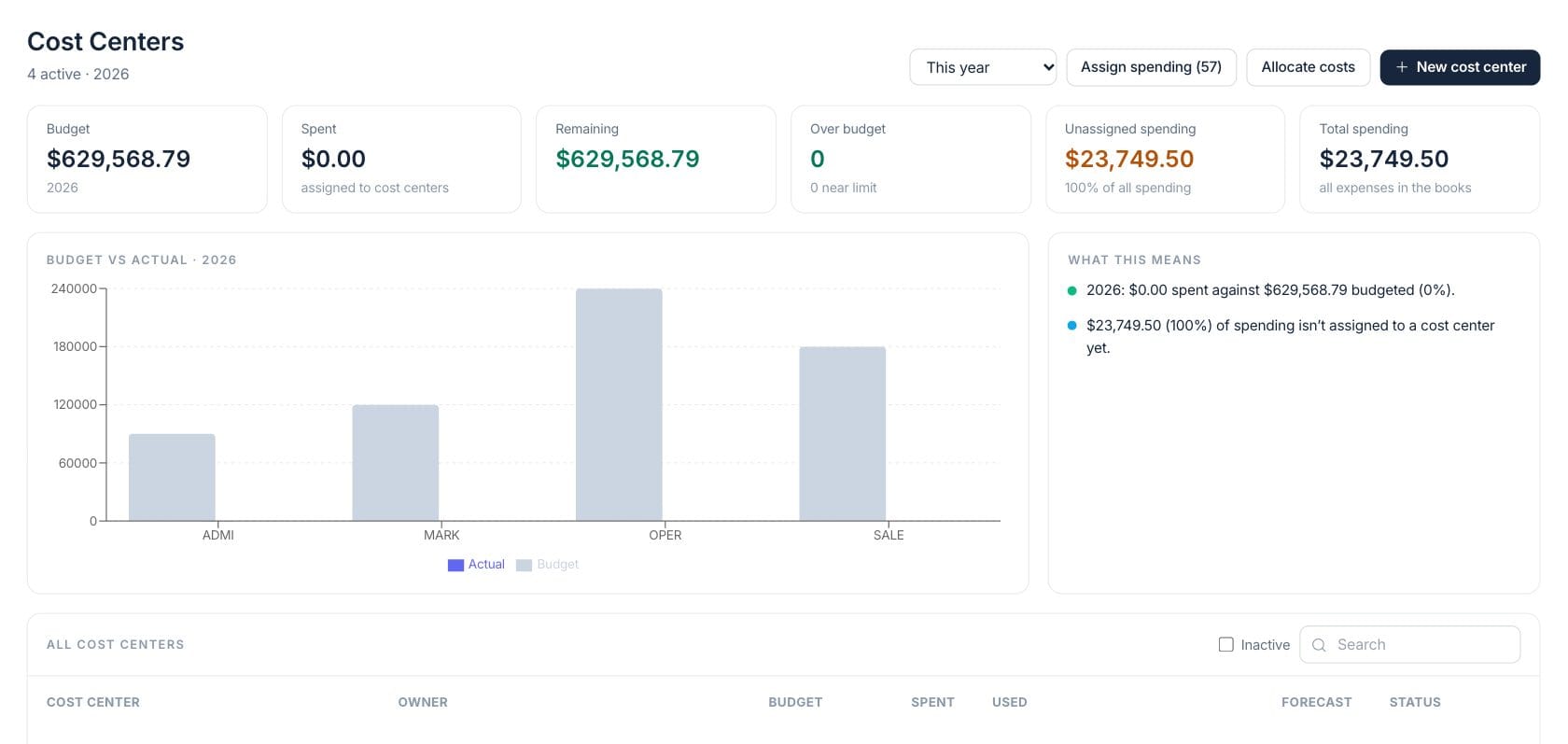
The numbers on your screen, explained
What each Cost Centers number means and where it comes from — so you know where to act.
The total budget across active cost centers for the selected period.
Expense activity already assigned to cost centers during the selected period.
Budget minus assigned spending for the selected cost-center period.
Expense spending in the books that has not yet been assigned to a cost center.
Sample numbers from a demo workspace.
Budgets
Compare cost-center budgets with actual spend
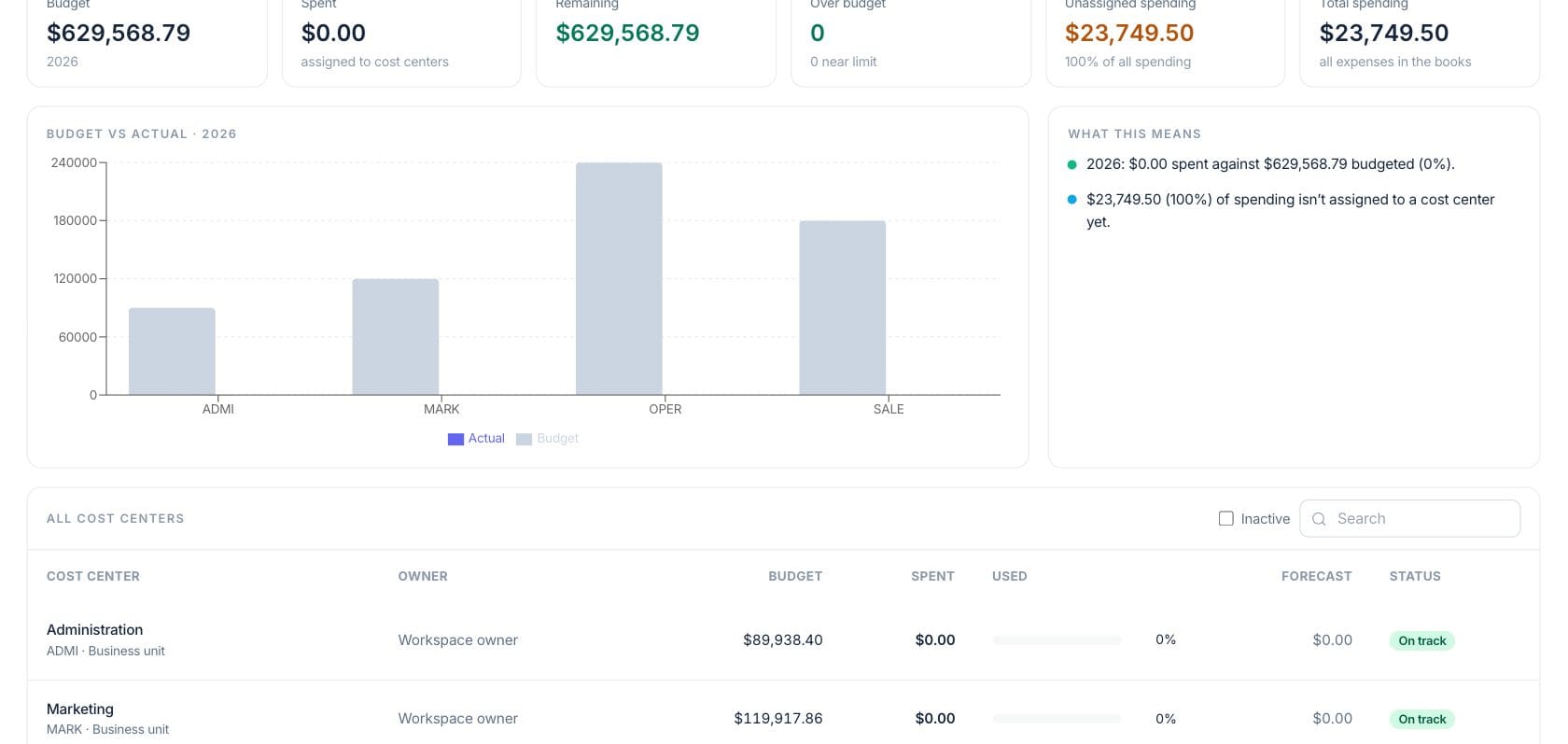
The overview rolls up active centers, showing budget, assigned spend, remaining balance, over-budget count and total spending for the selected period.
- Budget vs actual chart by top-level center
- Status labels such as on track, near limit and over
- Plain-language notes explaining budget position
Assign
Clean up spending that is not assigned yet
The Assign spending action lists expenses without a cost center so finance can filter, select and assign them in bulk.
- See unassigned amount and percentage of spend
- Assign selected expense rows to an active center
- Skip locked items from closed periods
Allocate
Move shared costs to the teams that use them
Allocation posts a journal entry that splits part of a source cost center expense account across target centers, without changing total company spend.
- Choose the source center and expense account
- Split evenly or set custom percentages
- Post allocations back to the books
Everything included
Everything in Cost Centers
Use it for departmental budgets, branch reporting, project allocation, and responsibility accounting.
Center budgets
Set monthly or yearly budgets for departments, locations, teams or programs.
Hierarchy support
Create parent and child cost centers for management rollups.
Budget vs actual
Compare budgeted amounts with assigned spend and forecasts.
Owners
Assign an owner to each center so responsibility is visible in reporting.
Bulk assignment
Assign untagged expense activity to a center from a review modal.
Shared allocations
Split shared costs across centers with a posted accounting entry.
Directory search
Search active or inactive centers and open detail views from the directory.
Source drill-through
Open invoices, bills, expenses or accounting context from cost-center transactions.
How it works
Cost Centers, step by step
- 01
Create the centers
Define teams, branches, departments or programs with codes, owners, scope and budgets.
- 02
Tag spend as it happens
Use cost-center fields on expenses, bill lines and journal entries to classify activity.
- 03
Review budget position
Monitor assigned spend, remaining budget, forecast, over-budget centers and unassigned spend.
- 04
Assign or allocate
Bulk-assign untagged expenses or post allocations for shared costs such as rent, IT or administration.
Connected
Works with the rest of Fratelli
The same records flow between these workspaces automatically.
FAQ
Cost Centers questions
Can’t find what you need? Our team is happy to help.
No. They classify where spending belongs. Allocations move spend between centers but do not change total company expense.
Yes. The workspace supports parent and child centers and rolls children into their parent for summary views.
Cost centers feed management reporting, accounting tags and the Reports Studio where reports support segmented views.
Try Cost Centers with the rest of Fratelli
Start free in minutes and bring the rest of your team when you are ready.