

AI Creator
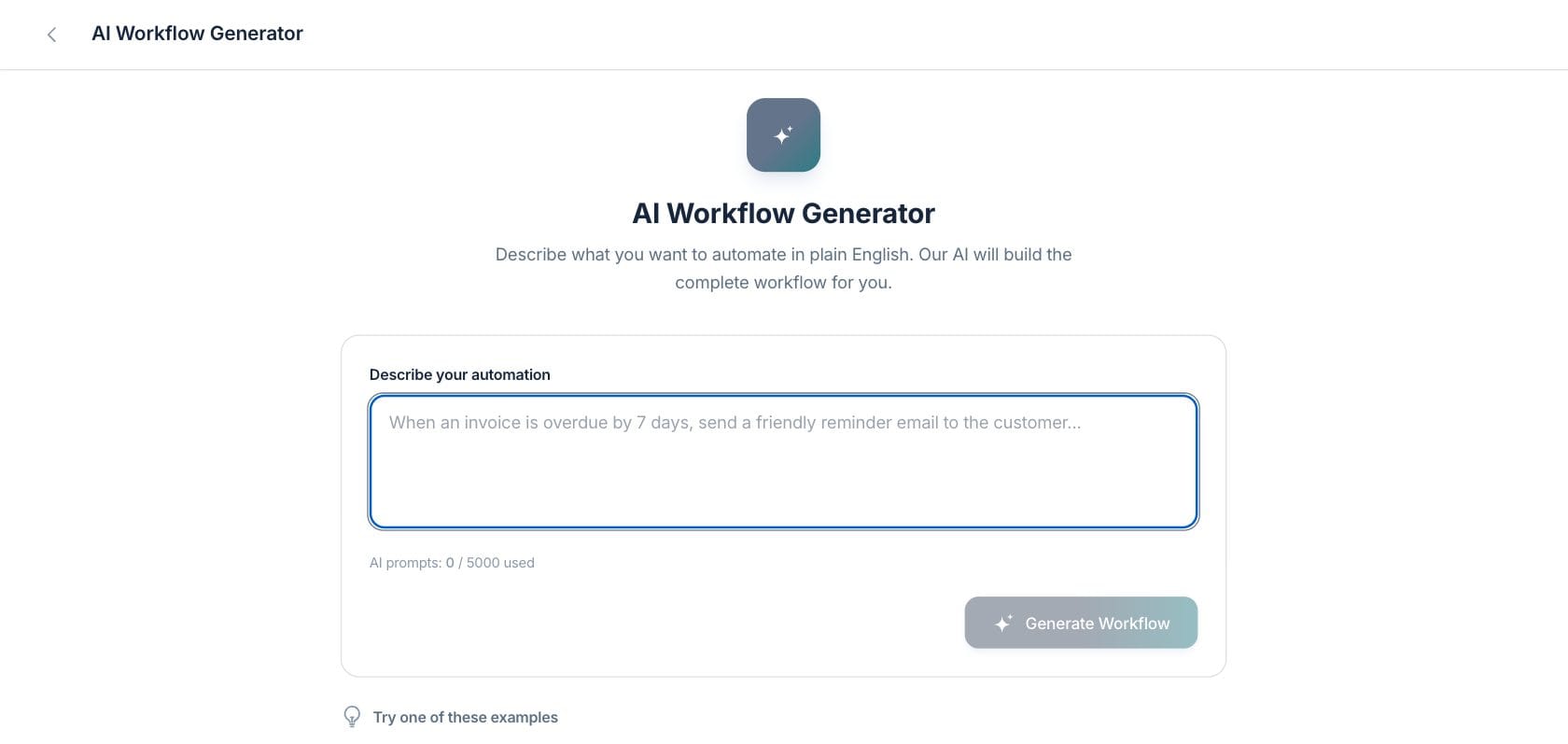
Describe an automation in plain English and get a drafted workflow the team can review, edit, and open in the builder.
At a glance
The numbers on your screen, explained
What each AI Creator number means and where it comes from — so you know where to act.
AI workflow generation prompts used compared with the workspace prompt limit.
Workflow drafts created from plain-English prompts during the current month.
Warnings or setup notes returned with generated drafts for the team to review before saving.
AI-created workflow drafts that were reviewed, edited, and published for use.
Sample numbers from a demo workspace.
Prompt
Start from the process you would explain to a teammate
The creator accepts a plain-English brief such as overdue invoice follow-up or low-stock owner notification, then drafts a workflow structure from that intent.
- Prompt examples help users get started
- Usage shows prompts used versus the plan limit
- Generation is disabled when AI is not available
Review
Inspect the generated trigger, steps, summary, and warnings
Generated workflows show the trigger, step list, AI summary, and review notes so the user can understand what was drafted before creating it.
- Review trigger and step labels before saving
- Warnings call out assumptions or missing setup
- Start over if the brief needs to be rewritten
Edit
Open the draft in Workflow Builder
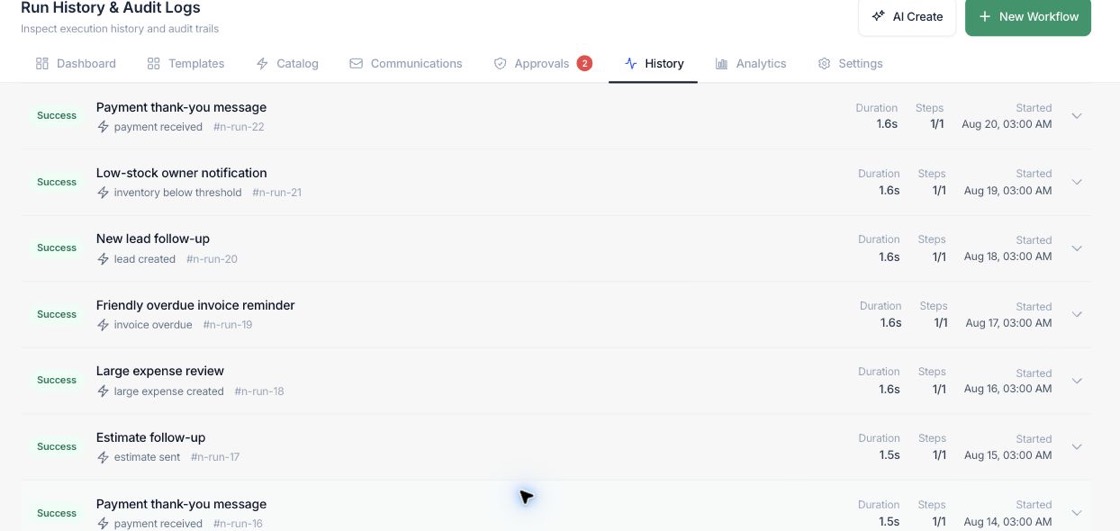
AI creates a starting point, not a locked process. The user can open the generated workflow in the builder and adjust rules, steps, approvals, and settings.
- Generated content remains editable
- Teams can add approvals, delays, branches, and actions
- The final workflow still follows normal save and publish controls
Everything included
Everything in AI Creator
Use it for message drafts, workflow outlines, summaries, and reusable content preparation.
Plain-English prompts
Describe the desired workflow in normal business language.
Workflow draft
Create a draft trigger and step sequence from the prompt.
Preview before saving
Review the generated structure, summary, and warnings before opening it in the builder.
Example prompts
Use suggested prompts to model common automation requests.
Prompt usage
Show monthly AI prompt usage and plan limits in the creator.
Builder handoff
Open the generated draft in Workflow Builder for normal editing and publishing.
How it works
AI Creator, step by step
- 01
Describe the workflow
Write what should happen, when it should happen, and any review or message requirements.
- 02
Generate the draft
AI returns a suggested trigger, steps, plain-language summary, and review notes.
- 03
Review assumptions
Check warnings, names, actions, and whether any integration or approval setup is needed.
- 04
Open and refine
Move the draft into Workflow Builder and edit it before publishing.
Connected
Works with the rest of Fratelli
The same records flow between these workspaces automatically.
FAQ
AI Creator questions
Can’t find what you need? Our team is happy to help.
No. The AI Creator drafts a workflow and opens it for review. The team still controls editing, saving, testing, and publishing.
Include the business event, the customer or record criteria, the action to take, timing, and whether approval is required.
Use Start Over or open the draft in Workflow Builder and add the missing condition, delay, approval, or action manually.
Try AI Creator with the rest of Fratelli
Start free in minutes and bring the rest of your team when you are ready.