

Returns
Record customer returns from invoices, approve restock decisions, and settle the financial follow-up with refund, credit, or invoice adjustment.
At a glance
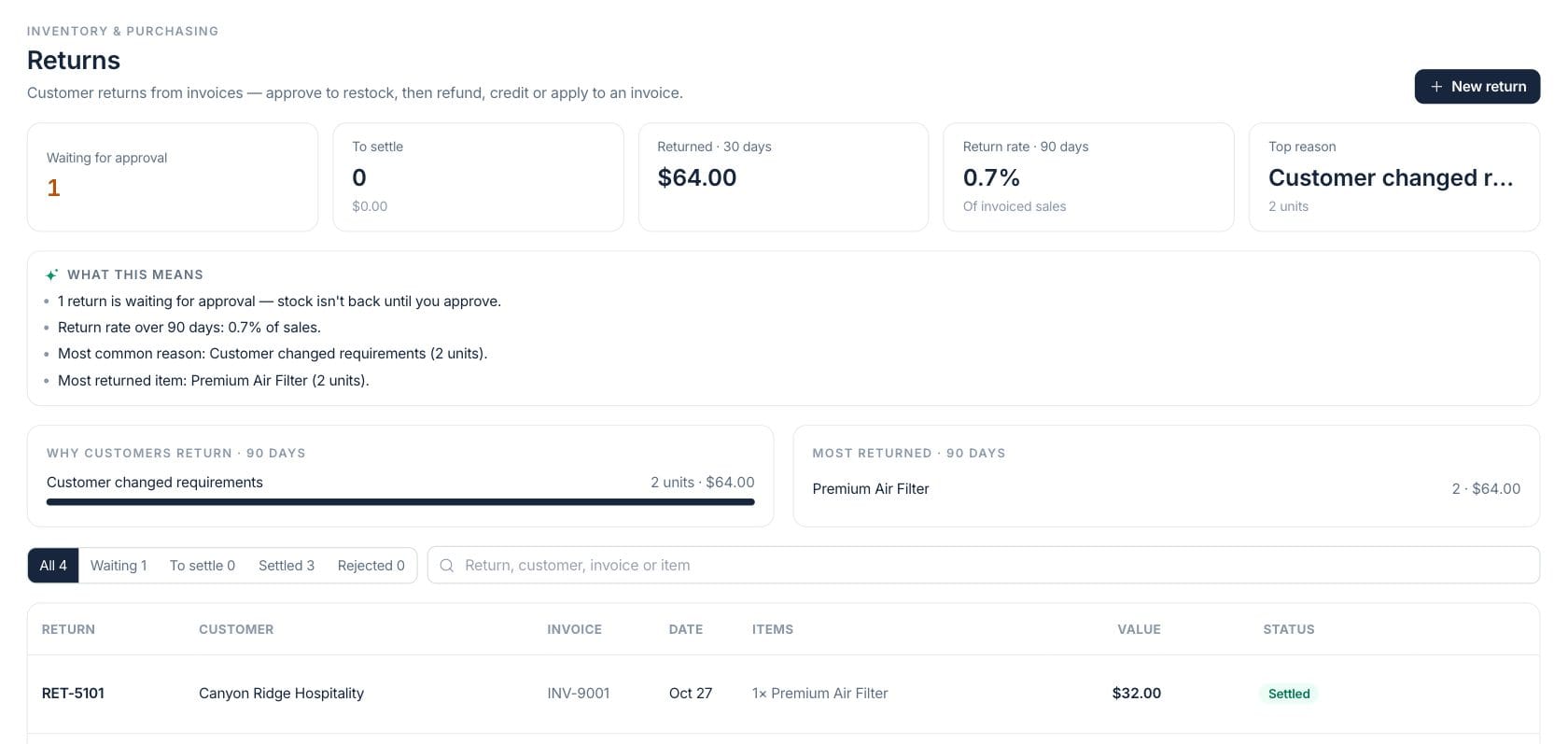
The numbers on your screen, explained
What each Returns number means and where it comes from — so you know where to act.
Submitted or draft returns that have not yet been approved for stock handling.
Approved returns still waiting for a refund, store credit, or invoice credit settlement.
Total return value recorded during the last 30 days.
Return value over the last 90 days compared with invoiced sales for the same period.
Sample numbers from a demo workspace.
Triage
See approval, settlement, return rate, reasons, and returned items together
The returns workspace summarizes what is waiting, what still needs financial settlement, recent value, return rate, top reason, and most returned items before the team opens the detail list.
- Filter all, waiting, to settle, settled, or rejected returns
- Review top reasons and most returned items
- Search by return, customer, invoice, or item
Approval
Approve restock or scrap decisions before inventory changes
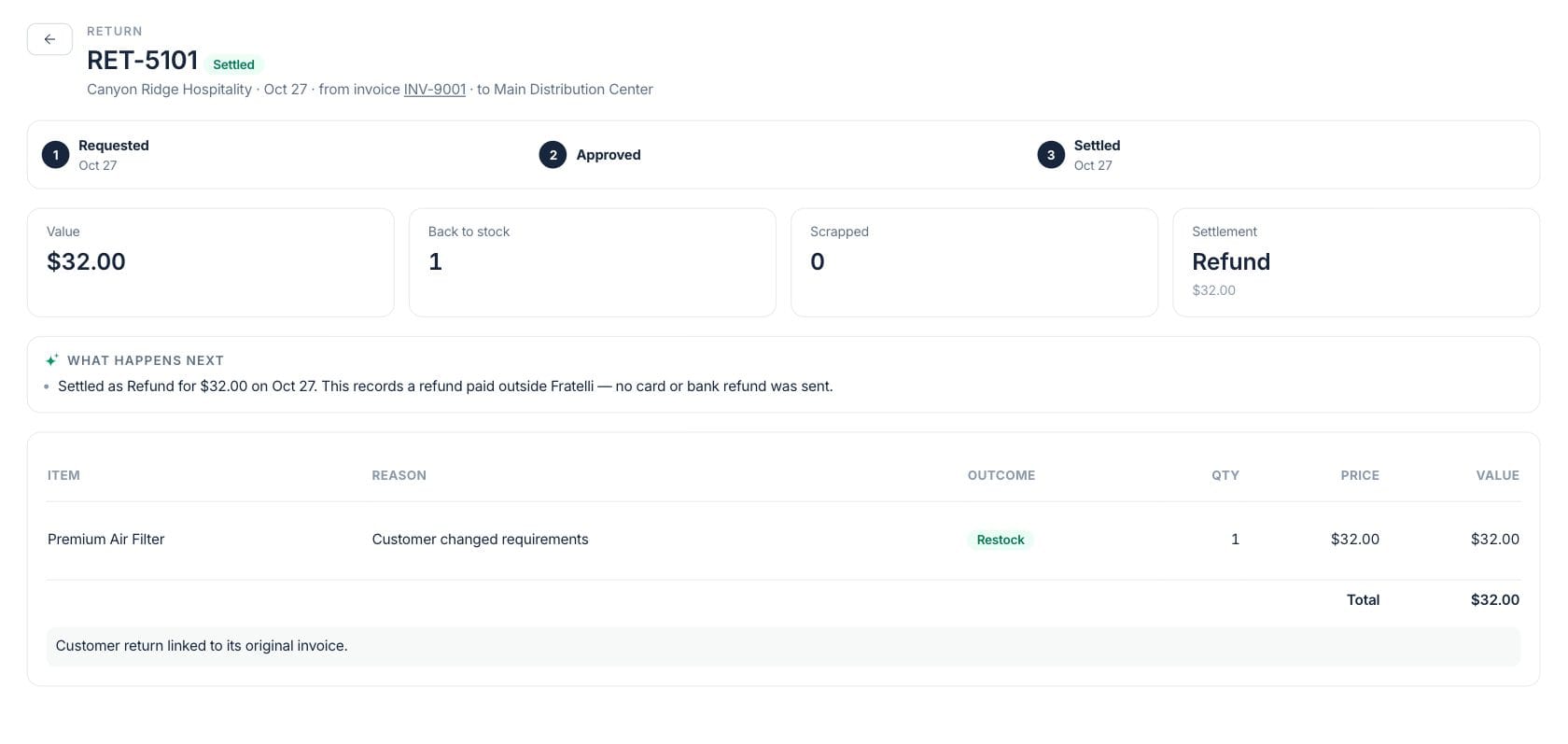
Returns begin from the original invoice. Approving restockable items puts them back into the chosen warehouse; scrap items are written off instead, and stock sync issues are kept visible.
- Start from invoice quantities not already returned
- Choose destination warehouse for restock items
- Reject returns with a required reason when needed
Settle
Finish the money side with refund, store credit, or invoice credit
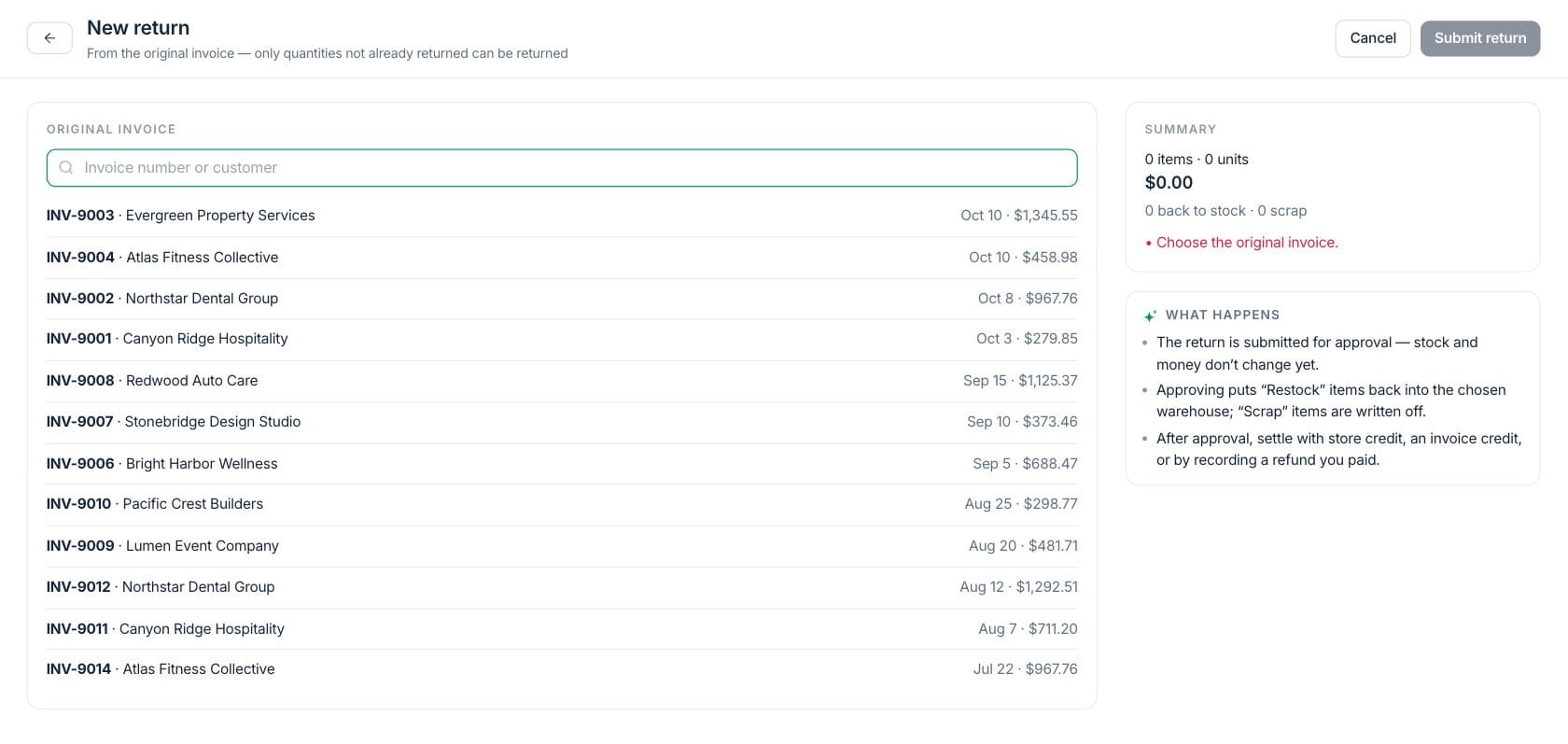
After approval, the return stays in the To settle queue until finance records the customer outcome. That keeps stock handling and customer credit decisions aligned.
- Settle approved returns after stock handling
- Apply a credit to an invoice when appropriate
- Record refund or store credit outcomes
Everything included
Everything in Returns
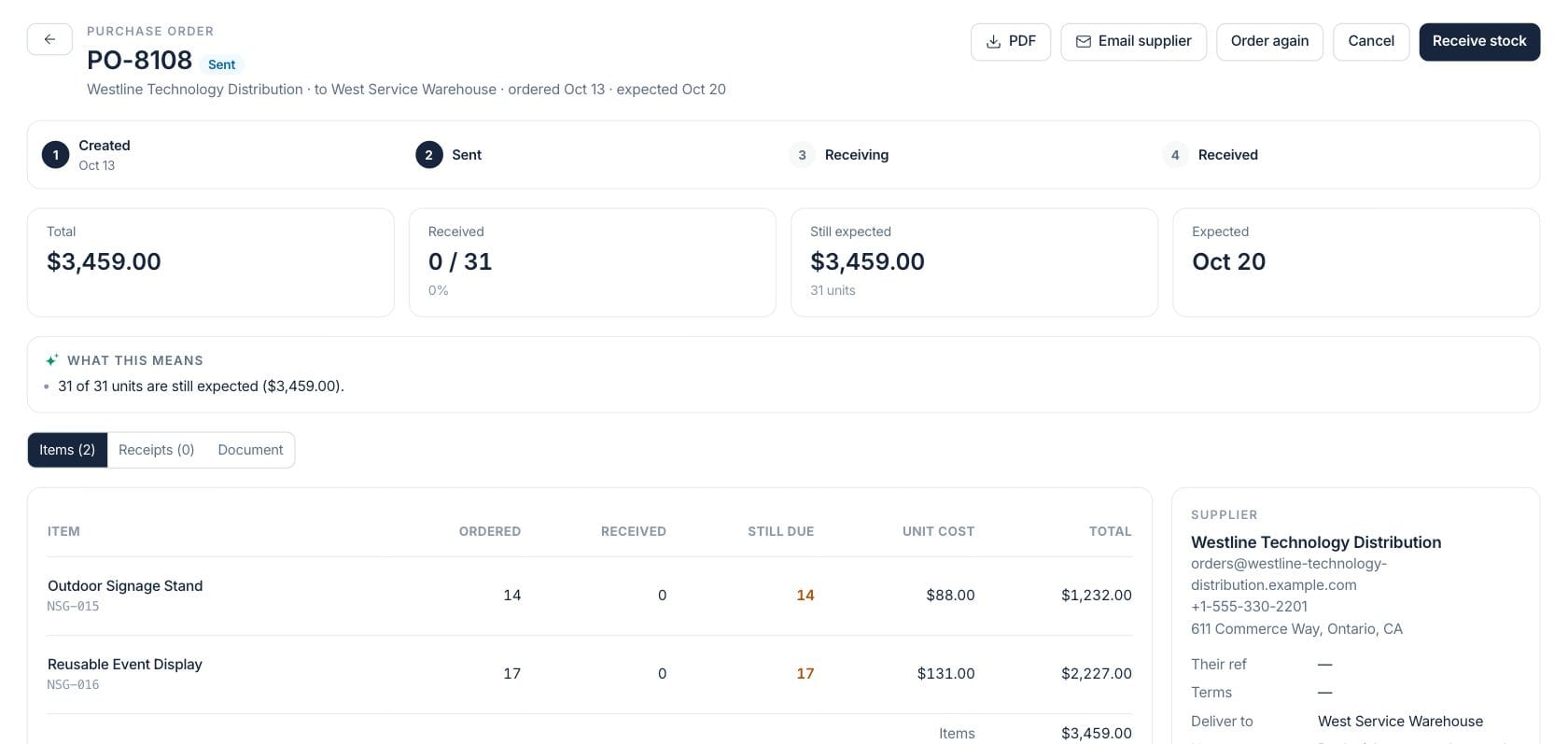
Use it for damaged goods, customer returns, supplier credits, and restocking review.
Customer return workflow
Track customer returns from invoice selection through approval, restock, rejection, and settlement.
Invoice-linked quantities
Start from original invoice lines and only return quantities that have not already been returned.
Restock destination
Choose the warehouse where approved restock items go back into inventory.
Approval before stock change
Submitted returns wait for approval before inventory and settlement actions continue.
Settlement queue
Keep approved returns visible until refund, store credit, or invoice credit is recorded.
Reason analysis
Track return rate, top reasons, and most returned products over the last 90 days.
Return lookup
Search by return number, customer, invoice, or item to answer customer and operations questions.
How it works
Returns, step by step
- 01
Start from the invoice
Find the original invoice and choose the items and quantities the customer is returning.
- 02
Choose stock treatment
Set restock or scrap decisions, destination warehouse, return date, and operational notes.
- 03
Approve or reject
Approve valid returns to update stock handling, or reject with a reason when the return should not proceed.
- 04
Settle the customer outcome
Record the refund, store credit, or invoice credit so the financial side is finished.
Connected
Works with the rest of Fratelli
The same records flow between these workspaces automatically.
FAQ
Returns questions
Can’t find what you need? Our team is happy to help.
No. Returns wait for approval. Restock items are added back to the selected warehouse only after approval.
Yes. Authorized users can reject a return and must provide a reason, such as being outside the return window.
After approval, returns can be settled with a recorded refund, store credit, or an invoice credit or adjustment, depending on the customer outcome.
Try Returns with the rest of Fratelli
Start free in minutes and bring the rest of your team when you are ready.